

Key Takeaways
- Your phone's built-in battery usage screen identifies which apps consume the most power.
- Background activity, location access, and push notifications are the most common app-related drains.
- Restricting background refresh and adjusting location permissions can extend battery life significantly.
- Uninstalling rarely used apps with high battery use is often the most effective fix.
- Battery drain from apps is a separate issue from overall battery health degradation over time.
What you will need
How to Recognize Battery Drain Caused by Apps
A battery that dies faster than it used to isn't always a sign of hardware decline. Apps running silently in the background - polling for new content, tracking your location, or maintaining live connections - can quietly consume a significant portion of your daily charge. Understanding the difference between normal use and excessive drain is the first step to fixing it.
Common signs that an app (rather than your battery) is the problem include:
- Your phone feels warm even when idle
- Battery percentage drops noticeably within an hour of unplugging without active screen use
- A specific app appears at the top of your battery usage list day after day
- Drain accelerates after installing a new app or updating an existing one
For context on what's normal versus worrying, see our guide to common battery myths - some drain patterns that seem alarming are actually expected behavior.
Check Battery Health First
Before blaming apps, rule out a worn battery. On iPhone, go to Settings > Battery > Battery Health & Charging. On Android, battery health tools vary by manufacturer but are often found under Settings > Battery or via a built-in diagnostics app. A battery at 80% health or below will drain faster regardless of how well-managed your apps are.
It's also worth knowing that always-on features like location services and push email are often the specific mechanisms apps exploit to drain your battery in the background.
What you will need
What to Do About It: Step-by-Step
Once you've confirmed that one or more apps are responsible for unusual drain, the steps below walk you through finding the culprits and dialing back their impact - without necessarily giving up the apps entirely.
Built-in Battery Usage Screen (iOS or Android)
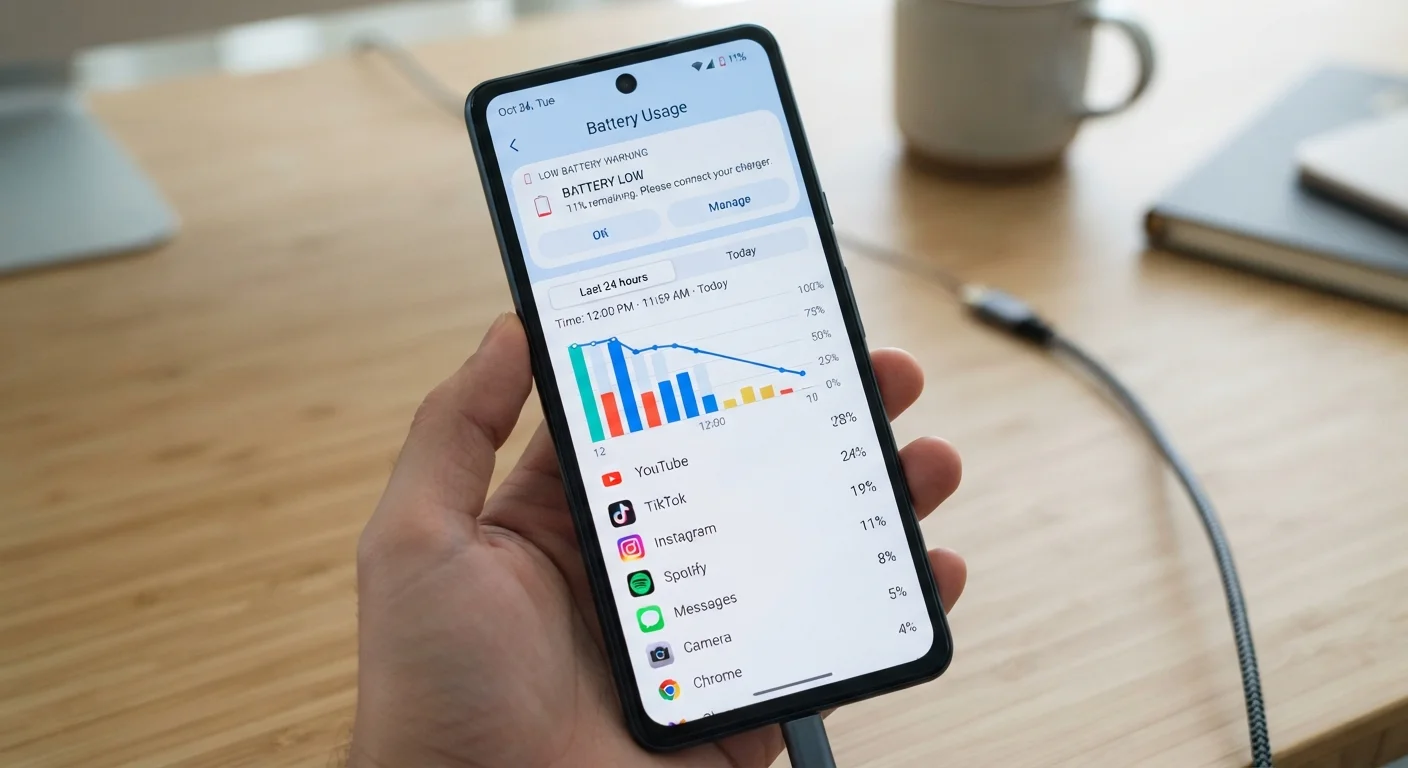
Shows a ranked breakdown of which apps have consumed battery over the past 24 hours or 10 days.
Location Services / App Permissions Settings
Lets you control whether individual apps can access GPS and run in the background.
Background App Refresh Toggle (iOS) / Battery Optimization (Android)
Limits how frequently apps can fetch new data while you're not actively using them.
Open your battery usage breakdown
On iPhone, go to Settings > Battery. Tap Show Activity to toggle between screen-on and background usage. On Android, go to Settings > Battery > Battery Usage (the exact path varies by manufacturer). Look at the past 24 hours first, then expand to the longer window if you need a clearer pattern.
Identify the top offenders
Any app consuming more than 10-15% of your total battery - without active, proportional use - deserves attention. Common culprits include social media apps, navigation tools left running after trips, streaming apps, and news aggregators with frequent refresh cycles. Note both the app name and whether the drain is happening in the background.
Restrict background app refresh
On iPhone: Go to Settings > General > Background App Refresh. Disable it entirely or turn it off for individual apps. On Android: Go to Settings > Battery > Battery Optimization, then select the app and choose Optimize or Restricted. This prevents apps from fetching data when you're not using them.
Audit location permissions
GPS is one of the most power-intensive hardware features on any phone. On iPhone: Settings > Privacy & Security > Location Services. On Android: Settings > Location > App Permissions. For most apps, switch from Always to While Using or Never. Reserve Always access only for navigation or safety apps that genuinely need it.
Adjust push notifications and fetch settings
Apps that push frequent notifications also wake your screen and processor repeatedly. Review which apps are allowed to send notifications under Settings > Notifications (both iOS and Android) and disable alerts for apps you don't need to hear from immediately. For email, switching from Push to Fetch - or setting a manual fetch schedule - can meaningfully reduce wake events.
Uninstall or replace chronic drain apps
If an app consistently ranks near the top of battery usage and you use it only occasionally, deleting it is the most effective fix. For apps you do rely on, check whether a lightweight alternative or the app's mobile website delivers the same core function with less background activity. Some social media platforms, for instance, consume far less battery when accessed through a browser than through their dedicated apps.
Revisit Permissions After Every Major Update
App updates can silently re-enable location access or background refresh. Make it a habit to review your battery usage and permissions monthly, especially after installing an OS update or a major app version change.
Don't Restrict System-Critical Apps
Aggressively restricting background activity on apps like your phone dialer, messaging system, or security tools can cause missed calls or delayed alerts. Focus restrictions on social media, streaming, and news apps - not core system functions.
If you've worked through these steps and battery life still feels short, the issue may relate to overall device health rather than any single app. Our article on why phones slow down over time explains how aging hardware and software changes interact - and what you can realistically do about it. You may also want to review habits that unknowingly shorten a phone's lifespan to rule out other contributing factors.