

Key Takeaways
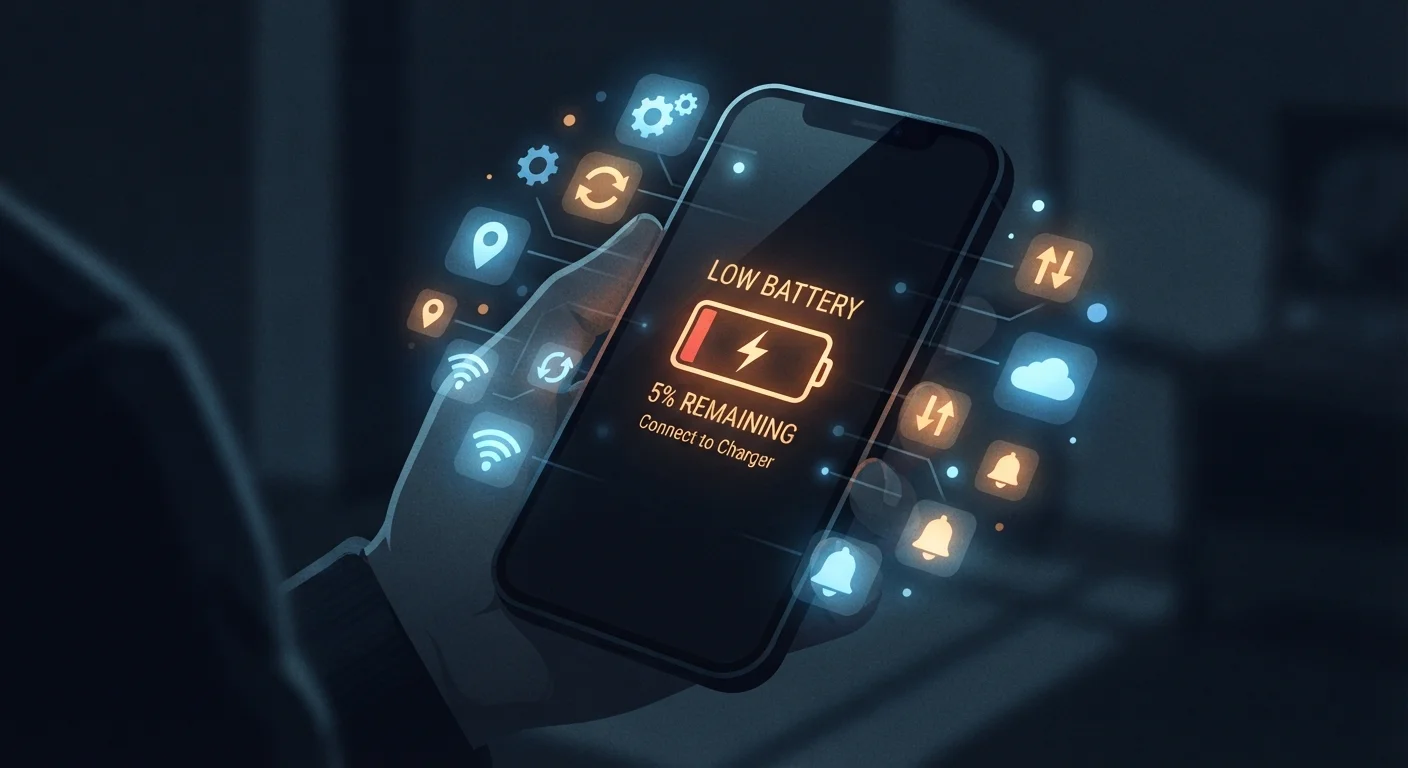
- Several built-in smartphone features consume battery continuously, even when you're not actively using your phone.
- Most hidden drains can be managed through your phone's settings without fully disabling useful functionality.
- Understanding each feature's purpose helps you make smarter trade-offs between convenience and battery life.
- Background app refresh, location services, and push email are among the most significant ongoing battery consumers.
- Small setting adjustments across multiple features can meaningfully extend how long your phone lasts each day.
What's Quietly Running While You're Not Looking
You charged your phone to full before bed. By mid-afternoon, it's at 30%. Nothing unusual happened - no long video calls, no heavy gaming. So where did the charge go?
The answer is almost always the same: always-on features running quietly in the background. Modern smartphones are designed to stay connected, current, and aware at all times. That convenience has a cost measured in milliamp-hours. The good news is that most of these features can be tuned rather than simply switched off. Understanding what each one actually does is the first step toward making smarter choices about your phone's settings.
For a broader look at battery behavior, the common smartphone battery myths article is a useful companion read. Below are the specific always-on features worth examining on any phone.
Background App Refresh
Background app refresh allows apps to fetch new content even when you're not using them. Your social media feed loads instantly because it was already refreshed before you opened it. News apps pull headlines around the clock. This is useful, but it means dozens of apps may be running periodic network requests throughout the day.
On both Android and iOS, you can control this on a per-app basis. Consider limiting background refresh to apps where real-time updates genuinely matter - messaging and navigation apps, for instance - and disabling it for apps you open intentionally anyway, like a recipe organizer or a shopping list. See Apps & Software guidance for more on managing app behavior.
Dozens of apps may be quietly fetching data all day, even when you never open them.
Location Services
Location services are one of the most power-hungry background features on any smartphone. GPS hardware, combined with Wi-Fi and cellular triangulation, draws meaningful current - and many apps request location access far more broadly than they need it.
Most phones let you choose between "Always," "While Using," and "Never" for each app's location access. A weather app checking your location every hour in the background is very different from a maps app only accessing GPS when you're actively navigating. Review your location permissions app by app and set most to "While Using." The app permissions explainer covers why apps request these permissions and which ones deserve a closer look.
Setting most apps to location access 'While Using' rather than 'Always' can noticeably extend battery life.
Push Email
Push email means your phone maintains a continuous connection to your email server, ready to receive messages the instant they arrive. It's the reason a new email appears on your lock screen within seconds of being sent. That persistent connection, however, consumes battery continuously.
An alternative is fetch, where your phone checks for new email on a schedule - every 15 minutes, every 30 minutes, or manually. For most people, fetching email every 15 to 30 minutes is practically indistinguishable from push delivery in daily life, and it significantly reduces the always-on network load. If you manage multiple email accounts, the cumulative effect of switching to fetch can be substantial.
Switching from push to scheduled fetch email delivery is a simple change with a meaningful battery impact.
Always-On Display
Many modern smartphones offer an always-on display (AOD) mode, which keeps a dim version of the clock, notifications, or widgets visible even when the phone is idle. The display - even at low brightness - is one of the largest battery consumers on a phone, so keeping any portion of it active around the clock adds up.
AOD is most useful if you frequently glance at your phone without unlocking it. If you typically tap your screen or press a button to check the time anyway, disabling AOD gives back battery without changing how you actually use the device. Most phones also allow AOD to be scheduled, activating only during certain hours - a middle-ground worth exploring.
Scheduling always-on display to active hours only captures most of its usefulness at a fraction of the battery cost.
Bluetooth and Wi-Fi Scanning
Even when you're not connected to a Bluetooth device or a Wi-Fi network, your phone may be continuously scanning for both. This scanning improves location accuracy (Wi-Fi positioning can pinpoint your location indoors where GPS struggles) and enables features like automatic connection to saved networks. However, it runs in the background at all times by default on many devices.
Android phones in particular have a specific "Wi-Fi scanning" and "Bluetooth scanning" setting under Location options, separate from simply having Wi-Fi or Bluetooth turned on. Disabling these scanning behaviors - while keeping Wi-Fi and Bluetooth themselves enabled for actual connections - reduces background radio activity. For a deeper look at how connectivity choices affect battery, see mobile data vs. Wi-Fi trade-offs.
Background Wi-Fi and Bluetooth scanning can be disabled without affecting your actual wireless connections.
Automatic App Updates and Cloud Syncing
Cloud backup services, photo syncing, and automatic app updates are genuinely valuable - until they fire off mid-afternoon over cellular and run down your battery during the hours you need it most. Large photo libraries syncing in the background, apps updating themselves throughout the day, and frequent cloud backups all contribute to background battery use.
Most phones and cloud services allow you to restrict these tasks to Wi-Fi only and, in some cases, to specific hours. Scheduling heavy syncing and updates for overnight while the phone is charging - and on Wi-Fi - means you get all the benefits without the daytime battery hit. This connects directly to good habits around long-term device maintenance.
Restricting cloud syncing and app updates to Wi-Fi and overnight hours preserves battery when you need it most.
Finding the Right Balance for Your Habits
None of the features above are inherently bad - they exist because they genuinely improve the smartphone experience. The goal isn't to strip your phone to the bare minimum, but to make intentional choices about which conveniences are worth their battery cost to you.
Start With Your Battery Usage Report
Before changing any settings, check your phone's built-in battery usage screen. It shows exactly which apps and system features consumed the most power over the past day or week. This takes the guesswork out of where to focus your attention first, and prevents you from disabling features that aren't actually costing you much.
A practical approach: spend five minutes in your battery settings reviewing which apps consumed the most power over the past 24 hours. Most phones surface this data under Settings > Battery. If an app is using significant background power and you barely interact with it, that's worth addressing. The signs an app is draining your battery guide walks through exactly how to identify and address those outliers.
Your annual device health check is also a smart moment to revisit these settings, since software updates and newly installed apps can quietly reset or change background activity defaults over time.