

Key Takeaways
- Installing your SIM card and enabling software updates should happen before downloading any apps.
- Choosing a strong screen lock and reviewing app permissions protects your personal data from the start.
- Restoring from a backup saves hours of manual reconfiguration and should happen before adding new apps.
- Skipping account sign-ins and backup configuration are the most common - and consequential - setup mistakes.
- A few deliberate early steps can prevent security gaps and data loss down the road.
What you will need
Why Setup Order Actually Matters
Most people power on a new phone and start downloading apps within minutes. That eagerness is understandable, but doing things out of order can create real problems - from restoring a backup over apps you've already installed to missing a critical security patch before your accounts are signed in.
Think of phone setup like moving into a new home: you want the locks working and the utilities connected before you unpack boxes. The steps below follow a logical sequence that keeps your data safe and your new device running cleanly from the first day. For an overview of protecting your device over the long term, see device care habits worth building from day one.
What you will need
Step-by-Step: Setting Up Your New Phone
Follow these steps in order for the smoothest experience. Some may not apply depending on your device or carrier, but the sequence holds whether you're on Android or iOS.
Insert your SIM card or activate eSIM
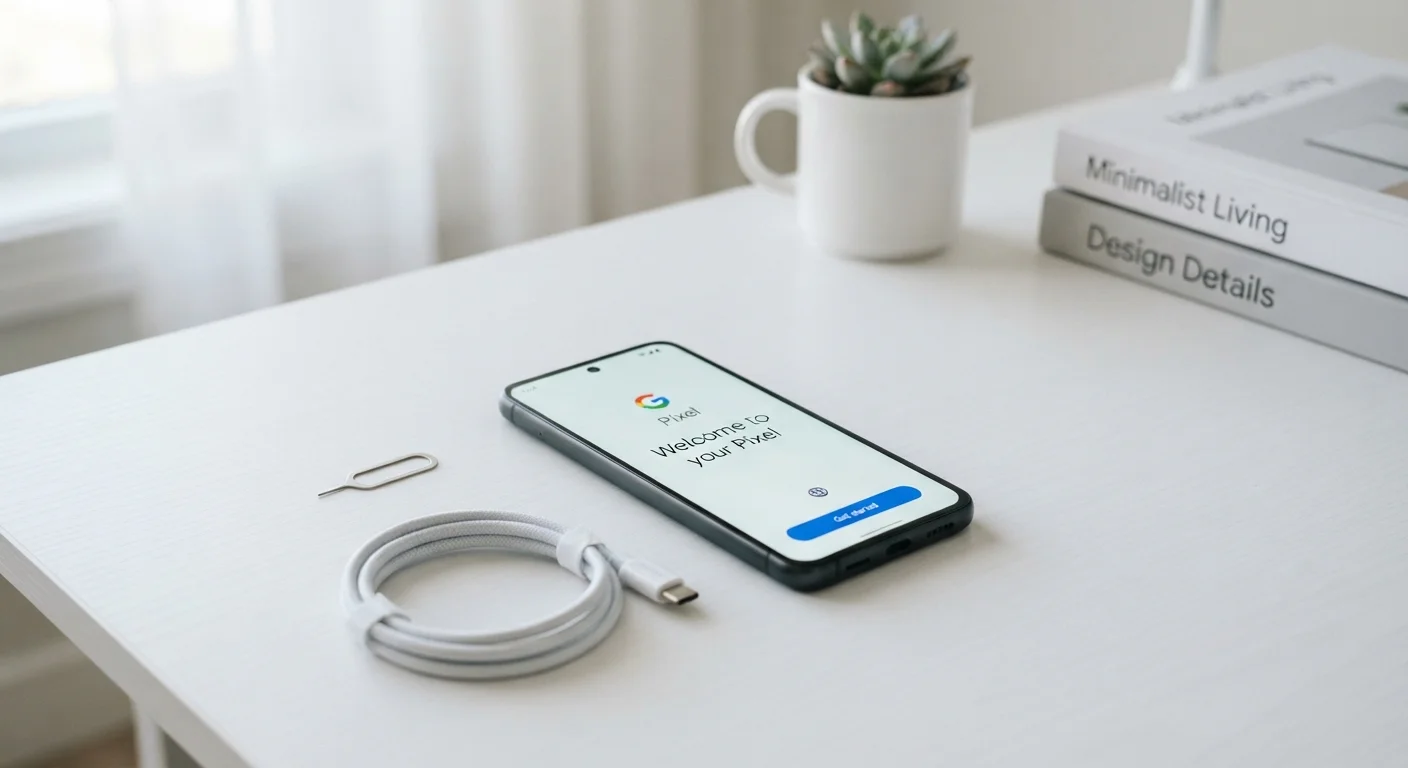
Before powering on, install your physical SIM card using the ejector tool (usually included in the box). If your phone and carrier support eSIM, you can activate digitally using a QR code or confirmation number from your carrier - no physical card needed. Confirm you have a signal before moving on.
Connect to Wi-Fi and install software updates
After the initial welcome screens, connect to a trusted Wi-Fi network. Then navigate to Settings > General > Software Update (iOS) or Settings > System > Software Update (Android) and install any available updates. Manufacturers frequently release security patches after a device ships from the factory.
Sign in to your primary account
Sign in with your Apple ID or Google account when prompted. This connects your phone to your purchase history, contacts, and cloud backup. If you use two-factor authentication (a security feature that sends a verification code to a trusted device), have your old phone or a backup code ready.
Restore from a backup or set up as new
Choose to restore from a recent iCloud, Google, or local backup to recover your apps, settings, and contacts automatically. If this is your first smartphone or you prefer a clean start, select Set Up as New Device. Restoring first - before manually downloading anything - prevents duplicate apps and messy app organization.
Set a strong screen lock
Go to Settings > Face ID & Passcode (iOS) or Settings > Security > Screen Lock (Android) and choose a six-digit or alphanumeric PIN. Then enable biometric unlock - fingerprint or face recognition - as a convenient layer on top. Avoid four-digit PINs and pattern locks, which are statistically easier to guess.
Enable automatic backups
Make sure cloud backup is turned on so your setup and data are preserved going forward. On iOS, check Settings > [Your Name] > iCloud > iCloud Backup. On Android, look under Settings > Google > Backup. Schedule backups to run nightly while charging.
Review app permissions for pre-installed apps
Many phones come with apps already installed by the manufacturer or carrier. Before adding your own apps, go to Settings > Privacy (iOS) or Settings > Apps > Permissions (Android) and review what access those pre-installed apps already have. Revoke anything that seems unnecessary. For ongoing guidance on managing permissions, the Apps & Software hub covers this in detail.
Don't Rush the App Download Stage
It's tempting to reinstall all your favorite apps immediately, but taking 10 extra minutes to finish setup properly pays off. Once your backup is restored and updates are installed, your apps will reappear in their familiar layout anyway - no manual hunting required.
Security Decisions You Shouldn't Skip
Two areas trip up even careful users during setup: screen lock strength and app permissions. A PIN shorter than six digits or a simple swipe lock leaves your device far more vulnerable than most people realize. Biometrics like fingerprint or face unlock are convenient, but they work on top of a strong PIN - not instead of one.
App permissions are the second major gap. When a newly installed app requests access to your contacts, location, or microphone, you're not obligated to say yes. Denying a permission you don't understand costs nothing and can always be changed later in your phone's settings. For a fuller breakdown of where people go wrong here, common device security mistakes is worth reading before you load up your new device with apps.
Be Cautious About Sideloading Apps at Setup
Some users immediately load apps from outside the official app store - a practice called sideloading. This carries real security risks, especially on a brand-new device before all updates are applied. If you're curious whether sideloading is ever appropriate, read what sideloading actually involves before making that call.