

| Where to find notification settings | Settings → Notifications (both iOS and Android) |
| Notification types | Banners, alerts, badges, sounds, vibration, lock screen, silent |
| Push vs. local | Push = server-sent in real time; Local = scheduled on-device |
| Focus/Do Not Disturb override | Priority contacts and apps can be set to break through Focus modes |
| Per-app control | Each app has independent notification settings - toggle any combination |
What Notifications Actually Are
A notification is a message your phone delivers on behalf of an app - a text preview, a calendar reminder, a news alert. Every notification goes through a permission layer: apps must ask your phone's operating system for the right to send them, and you can revoke that permission at any time. For a broader look at how app permissions connect to your privacy, see our guide to app permissions.
Notifications arrive through two delivery mechanisms. Push notifications are sent by an app's server to your device in real time - your phone doesn't have to be actively checking for them. Local notifications are scheduled by the app itself, directly on your device, without a server sending anything. Alarm reminders and habit-tracker prompts are typical examples of local notifications.
| Where to find notification settings | Settings → Notifications (both iOS and Android) |
| Notification types | Banners, alerts, badges, sounds, vibration, lock screen, silent |
| Push vs. local | Push = server-sent in real time; Local = scheduled on-device |
| Focus/Do Not Disturb override | Priority contacts and apps can be set to break through Focus modes |
| Per-app control | Each app has independent notification settings - toggle any combination |
The Core Notification Settings, Defined
Every major smartphone platform - whether iOS or Android - surfaces the same fundamental options, even if the labels vary slightly. Here is what each one does.
Banners and Alerts
A banner is the pop-up strip that slides in at the top of your screen when a notification arrives, then disappears on its own after a few seconds. An alert (used on iOS) stays on screen until you dismiss it manually - useful for time-sensitive reminders. If you find banners distracting during focus time, disabling them silences the pop-up without turning off the notification entirely; the message still arrives in your notification center.
Lock Screen Notifications
These control whether notification content appears on your screen while it's locked. You can typically choose to show the full message preview, show only the app name, or hide all notification content from the lock screen. Hiding previews on the lock screen is a simple privacy step - others can't glance at your messages in public.
Notification Center
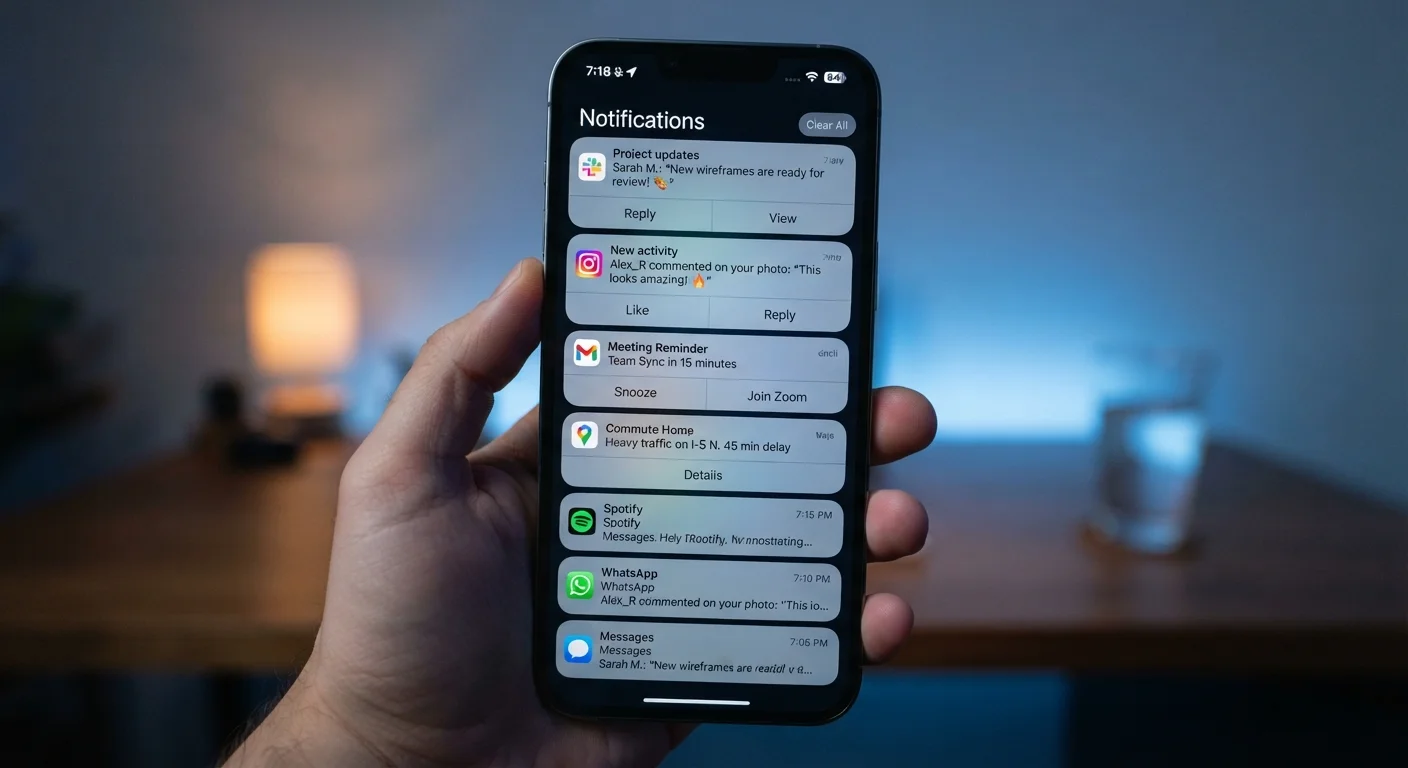
This is the scrollable list of all your recent notifications, accessed by swiping down from the top of your screen. Even if banners are turned off, notifications accumulate here. Think of the notification center as your inbox for all app alerts.
Badge App Icons
Badges are the numbered red circles that appear on an app's icon - the "3" on your email app telling you there are unread messages. They update automatically and persist until you open the app and clear them. You can disable badges per app if the visual clutter bothers you without affecting other notification types.
Sounds and Vibration
Sound and vibration settings can be toggled independently for each app. An app can be set to vibrate silently, play its default tone, use a custom tone, or produce no sound or vibration at all. These settings interact with your phone's overall ringer/silent switch - but some platforms allow certain apps to override silent mode for critical alerts.
Priority and Focus Modes
Both iOS (Focus) and Android (Do Not Disturb / Priority Mode) let you define which apps and contacts can break through during set periods. Priority notifications are those you designate as important enough to interrupt even a Focus session. Configuring this correctly means urgent alerts still reach you while routine ones wait. Keep in mind that active Focus or Do Not Disturb modes can quietly suppress notifications - worth reviewing if you're missing important messages.
Push Notification
A message sent from an app's remote server to your device in real time. The app does not need to be open for push notifications to arrive.
Local Notification
A notification scheduled by the app directly on your device, without any server involvement. Alarm reminders are a common example.
Silent Notification
A notification that arrives with no sound, vibration, banner, or badge. It appears only in the notification center, where you can view it on your own schedule.
Badge
The numbered circle displayed on an app's home screen icon indicating how many unread items or pending alerts the app has accumulated.
Focus / Do Not Disturb
A phone mode that suppresses most or all notifications during a set period or activity, with options to allow priority contacts or apps to break through.
Scheduled Summary
A feature that batches lower-priority notifications and delivers them together at a chosen time, reducing moment-to-moment interruptions.
Silent and Scheduled Delivery
Silent notifications arrive without any sound, vibration, banner, or badge - they deposit quietly into the notification center for you to check at your leisure. They are useful for apps that update content in the background, like news aggregators or shopping trackers, where immediacy isn't important. On iOS, this is called "Deliver Quietly."
Scheduled Summary (iOS) and notification batching (available on some Android builds) bundle lower-priority notifications and deliver them at a time you choose - for example, 8 a.m. and 6 p.m. - rather than trickling them through the day. This approach reduces interruptions without permanently silencing any app.
Notifications Don't Equal Battery Safety
Turning off notification banners does not stop an app from running background processes. If your goal is reducing battery drain, you may also need to adjust background app refresh settings separately from notification controls. These are two distinct settings that often get confused.
Aggressive notification activity from apps running in the background can contribute to battery drain. If you're troubleshooting battery life, reviewing which apps have unrestricted background notification delivery is a practical starting point. Our article on always-on features and battery drain explains the trade-offs in more detail.
Taking Control: Practical Starting Points
A useful audit takes less than ten minutes. Open your phone's Settings, navigate to Notifications, and scroll the app list. For each app, ask: does this app need to interrupt me immediately? If no, disable banners and sounds but keep notification center delivery on. If an app has no time-sensitive value at all, turn off notifications entirely.
For more context on how managing notifications fits into broader app management habits, the Apps & Software hub covers practical guidance across a range of device management topics.
- High-interrupt apps (phone calls, messages from close contacts): allow banners, sounds, and lock screen previews.
- Medium-value apps (email, calendar): consider badge-only or notification center delivery without banners.
- Low-value apps (social media, promotional apps): silent delivery or notifications off entirely.
Notification settings are not permanent decisions - revisit them whenever an app starts feeling noisy or you notice you're missing something important.