

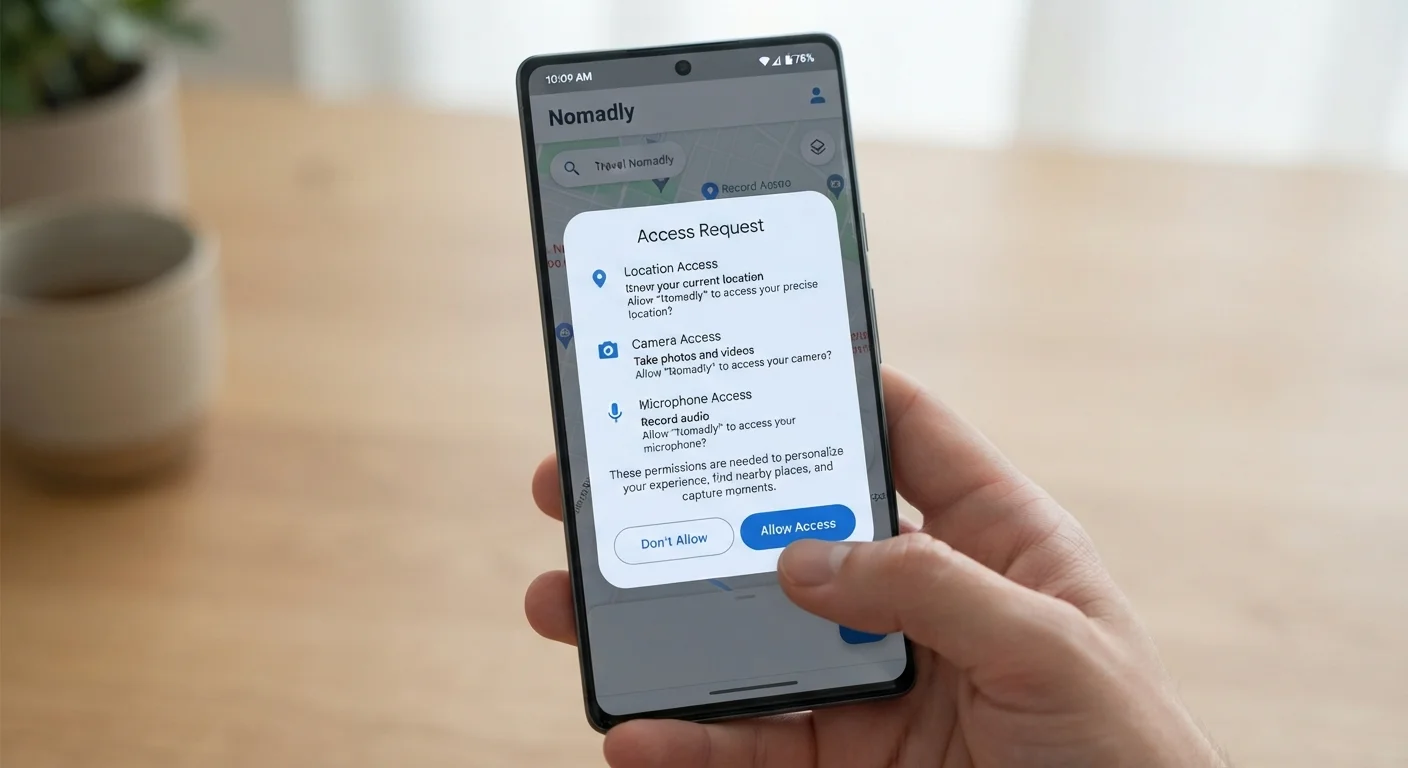
Key Takeaways
- App permissions grant access to sensitive device features like your camera, location, and contacts.
- Many apps request more access than they need - you can deny or limit permissions without breaking most functionality.
- Both Android and iOS let you audit and revoke permissions at any time through device settings.
- Location and microphone permissions carry the highest privacy risk and deserve the closest scrutiny.
- Reviewing permissions periodically is a simple habit that meaningfully reduces your data exposure.
What you will need
Why App Permissions Are Worth Your Attention
Every time you install an app and tap Allow on a permission prompt, you're extending a form of trust. You're telling that app it may access a specific part of your device - your location, your camera roll, your list of contacts, your microphone - often indefinitely, and sometimes in the background when you're not actively using it.
The problem isn't that permissions exist. They're a necessary part of how apps function. A navigation app genuinely needs your location. A QR scanner genuinely needs your camera. The concern is that many apps request access well beyond what their core function requires, and most users tap Allow without pausing to think about it.
Over time, that adds up. Your device can end up with dozens of apps holding access to sensitive features they rarely or never use. This increases your exposure to data collection practices that aren't always transparent - and occasionally to security risks if an app is later found to be malicious or poorly secured. For a broader look at how this fits into overall phone security, see our guide to common device security mistakes.
What you will need
Before you dive into the step-by-step audit below, it's also worth reading how to read app privacy labels before you download - that habit, combined with managing permissions after install, gives you a much cleaner picture of what each app actually does with your data.
Android Settings > Apps > Permissions
View and manage all permissions granted to each installed app on Android devices.
iOS Settings > Privacy & Security
Review and revoke permission categories - like location, contacts, or camera - across all apps on iPhone.
Permission Manager (Android)
See a category-by-category breakdown of which apps have access to sensitive features like microphone or location.
How to Audit and Manage Your App Permissions
The steps below work on both major mobile platforms. The exact menu names differ slightly between Android versions and iOS releases, but the underlying structure is the same across all current devices.
Open your device's permission settings
On Android: Go to Settings > Apps (or Application Manager) > Permission Manager. This view organizes permissions by category - location, camera, microphone, contacts, and so on - making it easy to see which apps have access to each.
On iPhone: Go to Settings > Privacy & Security. You'll see the same category-by-category layout.
Review high-sensitivity permissions first
Start with the categories that carry the most privacy risk: Location, Microphone, Camera, and Contacts. Tap each category to see every app that currently has access. Ask whether each app genuinely needs that capability to serve you.
- Location: A mapping app needs it; a recipe app almost certainly does not.
- Microphone: A voice recorder or video-calling app needs it; a wallpaper app does not.
- Contacts: A messaging app needs it; a game typically does not.
Adjust permission levels where possible
Many permissions offer more than a simple on/off toggle. Location, for example, typically offers three levels:
- Always - continuous access even when the app is closed
- While Using the App - access only when the app is open
- Never - no access at all
Set each permission to the most restrictive level that still lets the app work the way you need it to. For most apps, While Using is sufficient.
Check permissions for apps you rarely use
Older or infrequently used apps are easy to overlook but often hold permissions granted years ago. Go through your app list and identify any apps you haven't opened in several months. Either revoke their permissions entirely or uninstall the app if you no longer use it. An app you don't use has no business retaining access to your data.
Set a reminder to audit permissions periodically
A one-time review is useful, but app permissions can change over time - new apps get installed, existing apps get updated, and habits shift. Schedule a brief audit every few months. This doesn't need to take long: even a 10-minute check of your highest-sensitivity categories catches most problems before they become privacy issues.
Permissions Can Change After an Update
App updates can silently introduce new permission requests or expand the scope of existing ones. If an app asks for a permission it never needed before after an update, that's worth questioning. Check the update notes and consider whether the new access makes sense for what the app does. Denying unexpected new permissions rarely stops an app from working.
If you want to go deeper on what individual permission categories actually mean - why a flashlight app might request location access, or what microphone access truly enables - our plain-language breakdown of app permissions covers each category in detail. You can also find more foundational smartphone guidance at the Smartphone Basics hub.
Granting 'Always On' Location Is High Risk
Choosing 'Always Allow' for location gives an app continuous access to your whereabouts - even when you're not using it. Reserve this setting only for apps where constant location tracking is genuinely necessary, such as navigation or fitness tracking apps you actively rely on. For most other apps, 'While Using' or 'Never' is the safer default.
When in Doubt, Deny First
You can always grant a permission later if the app turns out to need it. Starting with denial is the lower-risk approach - most apps will function normally without every permission they request, and you can adjust settings once you understand how you actually use the app.
Managing permissions is one part of a broader approach to app hygiene. Understanding what you're actually granting access to when you approve a request - not just that you're granting something - makes every future permission decision faster and more confident. You can find more practical app guidance at the Apps & Software hub.