

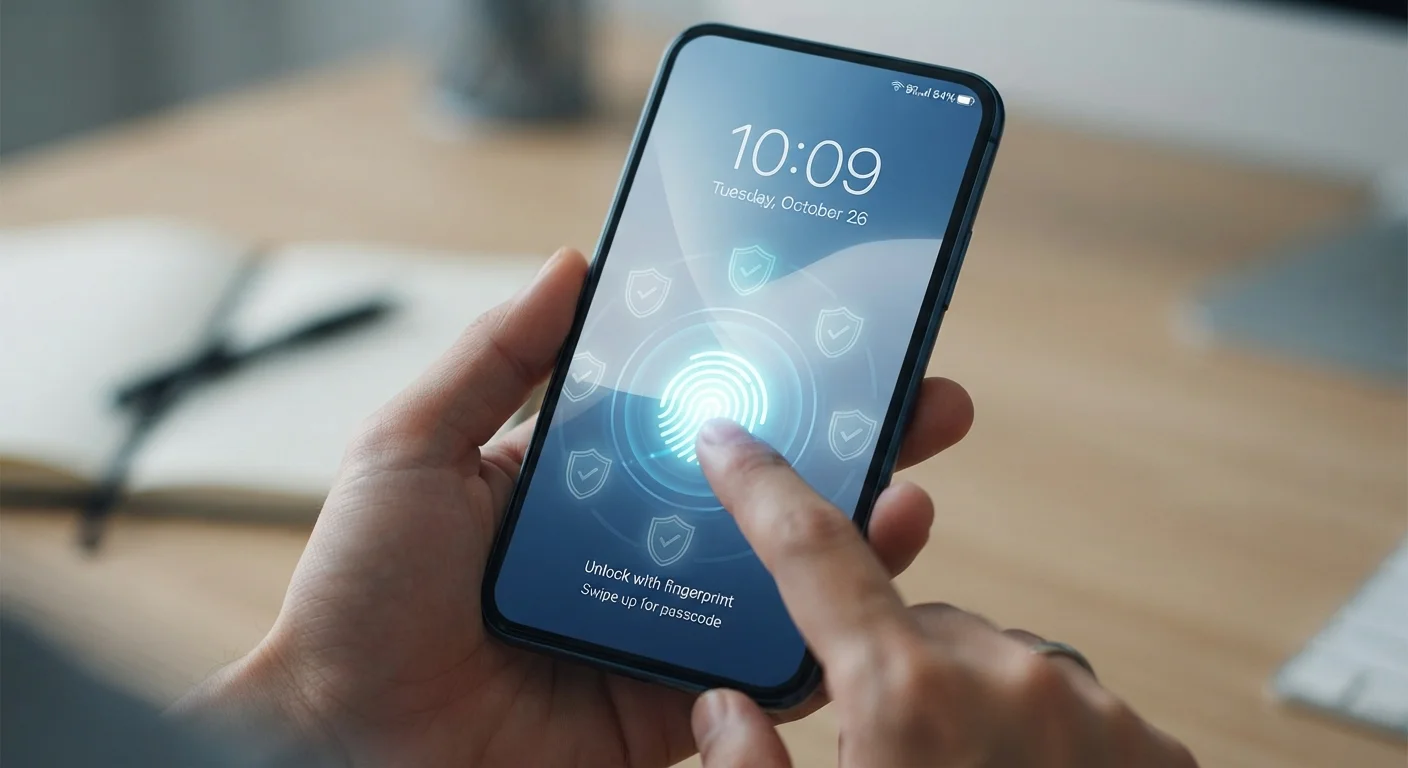
Key Takeaways
- A strong, unique PIN or passphrase is your first and most critical line of defense.
- Biometric authentication adds convenience without sacrificing meaningful security.
- App permissions granted carelessly are one of the most overlooked security risks.
- Software updates patch real vulnerabilities - skipping them leaves known gaps open.
- Auto-lock and screen timeout settings limit exposure if your phone is lost or left unattended.
Why Small Habits Create Big Protection
Most phone security failures aren't the result of sophisticated hacking. They happen because a screen stayed unlocked too long, an app was granted access it never needed, or an operating system update sat ignored for weeks. The good news is that the habits that genuinely protect you are straightforward - and you don't need technical expertise to put them in place.
Think of phone security as a series of doors, each one adding another layer between your personal data and anyone who shouldn't have it. This guide walks through the practices worth building, explained plainly. For a broader look at device protection from day one, see our device care habits guide.
Use a PIN or passphrase of at least six digits - and make it unique to your phone.
Shorter or common PINs can be guessed quickly, especially if someone observes you entering it. A six-digit or longer code that isn't tied to a birthday or obvious sequence raises the bar substantially.
Set your screen to auto-lock within 30 seconds to two minutes of inactivity.
A phone left unattended - on a desk, in a rideshare, at a coffee shop - is vulnerable the moment the screen stays on. Auto-lock dramatically limits that window of exposure.
Audit app permissions every few months and revoke access that isn't necessary.
Permissions accumulate over time and apps sometimes request more access than they need. Regularly reviewing and trimming unnecessary access reduces your exposure if an app is compromised or behaves badly.
Keep your operating system and apps updated - enable automatic updates where possible.
Security patches address specific, known vulnerabilities. Every week a phone runs unpatched software is a week where those gaps remain exploitable.
Enable two-factor authentication on your most important accounts accessed from your phone.
If login credentials are exposed in a data breach, a second verification step prevents unauthorized sign-ins even when a password is known. Email and financial accounts are the highest priority.
Lock Screens, PINs, and Biometrics
Your lock screen is the single most important security control on your phone. A device without one - or with a weak four-digit PIN like 1234 - offers almost no resistance if lost or stolen.
Biometrics and PINs Work Best Together
Use fingerprint or face recognition for everyday convenience - but make sure your backup PIN is strong and not something easily guessed. Your phone will ask for the PIN after a restart, several failed biometric attempts, or when you haven't used the phone for a while. That PIN is only as strong as you make it.
Biometrics (fingerprint readers and face recognition) are genuinely secure on modern smartphones and significantly more convenient than typing a code repeatedly. They work best as a complement to a strong PIN, not a replacement - your PIN remains the fallback if biometric authentication fails. For a plain-language explanation of how biometrics work, our smartphone terms glossary covers the basics.
~70%
Smartphones protected by a screen lock
Pew Research Center surveys have found that a significant share of US smartphone owners do not consistently use a screen lock, leaving devices unprotected if lost or stolen.
6+ digits
Recommended minimum PIN length
Security guidance from organizations like the National Cybersecurity Alliance recommends a minimum six-digit PIN, as four-digit codes have only 10,000 possible combinations.
App Permissions: Less Is More
Every time an app requests access to your camera, microphone, location, or contacts, it's asking for a piece of your private life. Granting permissions without thinking is one of the most common - and correctable - security oversights people make.
The key question to ask is: does this app actually need this access to do what I installed it for? A flashlight app has no legitimate reason to request your contacts. A navigation app needs location access to function, but probably doesn't need it running constantly in the background.
Review app permissions periodically in your phone's settings. Both Android and iOS let you see - and revoke - what each app can access. You can also learn more about the common mistakes that leave phones exposed in our companion piece on device security mistakes people make.
Location Permission: Three Settings Worth Knowing
Most smartphones offer three location permission levels for apps: 'Always,' 'While Using,' and 'Never.' 'Always' allows an app to track your location even when you're not using it. For the vast majority of apps, 'While Using' provides full functionality without background tracking. It's worth reviewing which apps currently have 'Always' access and whether that level is genuinely necessary.
Updates, Backups, and Quick Wins
Security patches fix real, documented vulnerabilities - often flaws that have already been discovered by researchers or bad actors. Delaying updates leaves those openings in place. Most phones can be set to download and install updates automatically overnight, so there's rarely a good reason to postpone them. Our article on what software updates actually patch explains what's really changing with each release.
Backups won't prevent a breach, but they ensure you don't permanently lose your data if your phone is stolen or wiped. Our guide on cloud backup vs. local backup explains how each approach works and when each makes sense.