

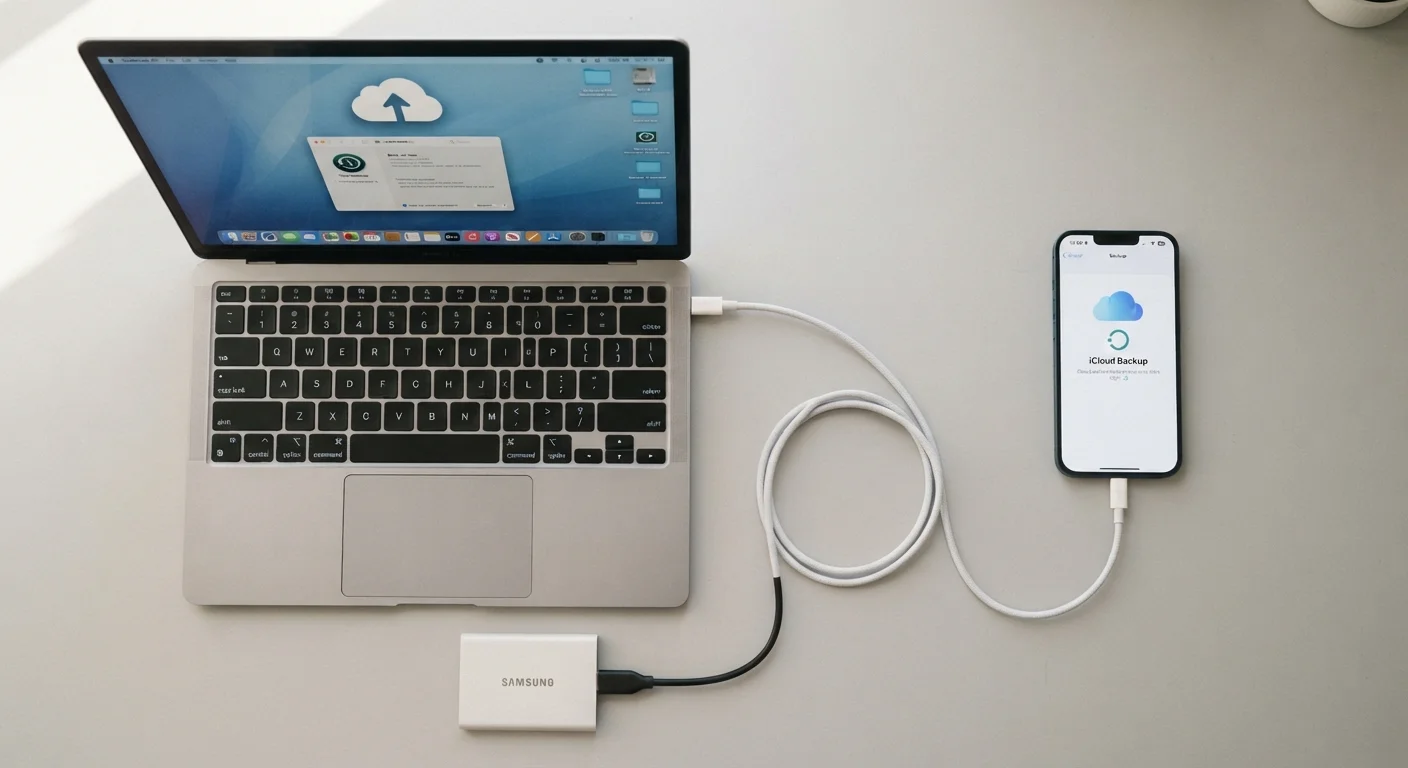
Key Takeaways
- Cloud backup runs automatically and lets you restore data from any location with internet access.
- Local backup stores a full copy of your phone on your computer, with no ongoing storage fees.
- Each method has real weaknesses - using both together gives you the strongest protection.
- Free cloud storage tiers are limited; large photo libraries often require a paid plan.
- Local backups require a cable, a computer, and manual effort but work entirely offline.
Our Verdict
Neither cloud nor local backup is universally better - each covers gaps the other leaves open. Cloud backup wins on convenience and automatic protection, while local backup offers complete control, no subscription costs, and offline access. For most users, combining both approaches delivers the most reliable safety net.
| Best for | Recommended |
|---|---|
| Users who want effortless, set-and-forget protection | Cloud Backup |
| Those who need a full device copy without recurring fees | Local Backup |
| Anyone switching to a new phone or recovering from device loss | Both (hybrid approach) |
| Users with large media libraries and limited free storage | Local Backup |
How Each Backup Method Actually Works
A cloud backup sends your phone's data - contacts, photos, app settings, messages - over the internet to a remote server managed by a company like Apple (iCloud), Google (Google One), or a third-party provider. Once enabled, it typically runs automatically, often overnight while your phone charges and connects to Wi-Fi. You don't have to think about it once it's set up.
A local backup copies the same data directly to your computer via a USB cable or, in some cases, over your home Wi-Fi network. On iPhones, this is done through Finder (on Mac) or iTunes (on Windows). Android devices often use manufacturer software or third-party tools. The backup file lives on your hard drive - fully under your control, with no internet required.
Understanding this distinction matters for more than just tech trivia. Where your backup lives determines how quickly you can restore it, what happens if your internet goes down, and whether a hacker who compromises a cloud account can also reach your data. For a broader look at how software-based services differ from locally run ones, see the difference between native and web apps.
Comparing the Two Approaches
The table below breaks down the most important factors side by side, so you can see where each method excels and where it falls short.
| Cloud Backup | Local Backup | |
|---|---|---|
| Setup effort | Low - enable once in settings | Moderate - requires cable and software |
| Runs automatically | Yes, typically nightly on Wi-Fi | No, must be initiated manually |
| Storage cost | Free tier limited; paid plan often needed | Free - uses your computer's storage |
| Internet required | Yes, to back up and restore | No - fully offline |
| Accessible from anywhere | Yes, from any device with credentials | No - tied to the computer holding the file |
| Vulnerable to account breach | Yes | No |
| Vulnerable to physical loss/disaster | No | Yes, if not stored separately |
| Best for | Ongoing automatic protection | Full device snapshots, no fees |
One pattern stands out: cloud backup is easier to maintain, but local backup gives you more control and no recurring cost. Neither is a complete solution on its own.
The Hidden Risks in Each Approach
Cloud backup's biggest vulnerability is its dependency on two things: an internet connection and the security of your account credentials. If your cloud account is compromised, so is your backed-up data. Strong passwords and two-factor authentication are essential safeguards. Practical phone security habits - including how to set up two-factor authentication - are worth reviewing alongside any backup plan.
Cloud storage also isn't unlimited. Free tiers (typically 5-15 GB depending on the platform) fill up quickly once photos and videos are included. Beyond that, a monthly subscription is required. If payment lapses, some providers may restrict access to your backup.
Don't Assume a Full Cloud Backup Is Running
Many users enable cloud backup but never verify it completes successfully. Common reasons it silently fails: insufficient free storage, Wi-Fi not connected at charge time, or an outdated app version. Check your backup status periodically in your phone's settings - don't wait until after data loss to discover the last backup was months ago.
Local backups carry their own risks. A backup stored only on a laptop is vulnerable to the same household disasters - fire, flood, theft - that might destroy your phone. And because local backups are manual, it's easy to forget to run one. A backup from three months ago may not preserve your most recent photos or messages.
When to Rely on One, the Other, or Both
For most everyday users, cloud backup should be your default - it's automatic, requires no hardware, and means your latest data is protected even if your phone is lost or stolen tomorrow. Enable it in your phone's settings under iCloud (iPhone) or Google Account backup (Android), confirm it's running on Wi-Fi, and check occasionally that it completed successfully.
Add a local backup before major events: switching phones, updating your operating system, or traveling internationally. A full local backup gives you a complete snapshot you can restore from without needing internet access. This is especially useful when transferring everything to a new phone.
Run a Test Restore at Least Once
The only way to confirm your backup actually works is to test it. On iOS, you can check the last successful backup date under Settings > [Your Name] > iCloud > iCloud Backup. On Android, look under Settings > Google > Backup. If you've never done a local backup, try connecting your phone to your computer and running one today - it takes less than 20 minutes and confirms the process works before you actually need it.
If you want a deeper look at structured backup strategies - including how often to back up and what data to prioritize - backup strategies that hold up when you need them covers both cloud and local approaches in detail. You can also explore the broader device care and safety topic for guidance on protecting your devices long-term.