

Key Takeaways
- Apps are software programs designed to run on smartphones and tablets for specific tasks.
- Official app stores (Google Play and Apple App Store) are the safest places to find and download apps.
- Reviewing permissions before installing helps protect your privacy and device.
- Keeping apps updated closes security gaps and improves performance.
- Deleting unused apps frees up storage and reduces clutter on your device.
Start here
What Is an App, Exactly?
Next
Where Apps Come From: The App Store
Then
How to Download and Install an App
Build on it
Managing, Updating, and Removing Apps
Stay protected
Staying Safe When Using Apps
What Is an App, Exactly?
An app - short for application - is a software program designed to perform a specific task on your smartphone or tablet. Some apps come pre-installed by the device manufacturer (like a calculator or a camera). Others you choose to add yourself based on what you need.
Apps range from simple tools like timers and flashlights to full-featured platforms for messaging, banking, navigation, and entertainment. Think of them as purpose-built tools that live on your device, each doing one thing particularly well.
App (Application)
A software program designed to run on a smartphone or tablet that performs a specific task, like navigation, messaging, or banking.
App Store
A digital marketplace built into your device where you can search for, download, and manage apps. Apple uses the App Store; Android uses Google Play.
Permission
A request from an app to access a feature or data on your device, such as your camera, location, or contacts. You choose whether to allow or deny it.
In-App Purchase
An optional paid feature or content offered inside a free app. These charges appear on your account and should be reviewed before confirming.
Update
A new version of an app released by the developer to fix bugs, close security gaps, or add new features. Keeping apps updated is a key safety habit.
If you're just getting your device set up for the first time, our guide to setting up a new smartphone covers the foundational steps before you start adding apps.
Where Apps Come From: The App Store
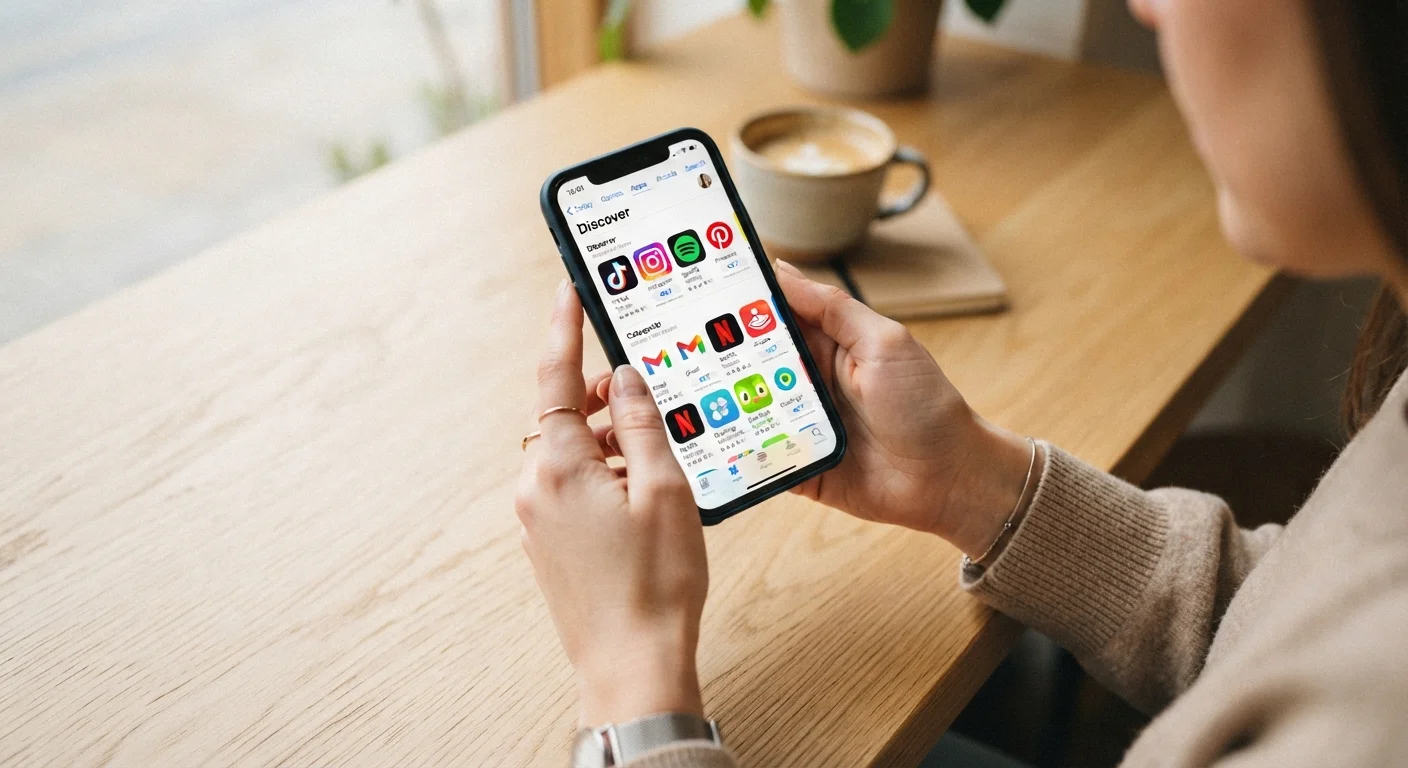
The primary source for apps is an app store - a curated marketplace built into your device. Apple devices (iPhone, iPad) use the App Store. Android devices (from manufacturers like Samsung, Google, and others) use Google Play.
Both stores review apps before listing them, which significantly reduces - though doesn't eliminate - the risk of downloading something harmful. Browsing the store is simple: use the search bar to look for a specific app by name or category, or explore featured and top-rated sections to discover new tools.
Use the Search Bar to Find Apps Faster
If you know exactly what you're looking for, typing the app's name directly into the store's search bar is faster than browsing categories. If you only know the task you want to accomplish, try searching by function - for example, 'budget tracker' or 'recipe planner' - to surface relevant options.
It's worth knowing that there is another method called sideloading, which involves installing apps from outside the official store. This carries meaningful risks and is generally not recommended for beginners. Our in-depth look at sideloading explains what's involved and when it may ever be justified.
How to Download and Install an App
Once you've found an app you want, installing it takes just a few taps:
- Open your app store and search for the app by name.
- Tap the app's listing to open its detail page. Read the description, check the developer name, and look at user ratings.
- Tap Get or Install (or the price if it's a paid app). You may be asked to confirm with a fingerprint, face scan, or password.
- Wait for the download to finish. A progress indicator will show you how long it's taking - larger apps take longer on slower connections.
- Open the app from your home screen or app library once installation is complete.
When you first open many apps, they'll ask for permissions - access to your camera, microphone, location, or contacts. Only grant what makes logical sense for that app's purpose. A navigation app reasonably needs your location; a recipe app does not.
Managing, Updating, and Removing Apps
Keeping your apps organized and up to date is a small habit with a real payoff. Here's what to know:
Updating Apps
Developers release updates to fix bugs, patch security vulnerabilities, and add features. You can update apps manually through the app store's Updates or Manage Apps section, or enable automatic updates in your device settings so it happens in the background. Staying current is one of the simplest ways to keep your device running smoothly - a point worth pairing with the broader device care habits worth building from day one.
Deleting Apps You No Longer Use
Unused apps take up storage space and can occasionally run quietly in the background. To remove an app on most devices, press and hold its icon until a menu appears, then choose Delete or Uninstall. You can always reinstall a free app later without being charged again.
Deleting an App May Delete Local Data
Before removing an app, check whether your data is saved to a cloud account or stored only on your device. Notes, progress, or files that exist only locally will be lost when the app is deleted. When in doubt, log into the app and look for a backup or export option before uninstalling.
Organizing Your Home Screen
Most devices let you create folders by dragging one app icon on top of another. Grouping related apps - social, finance, health - makes it easier to find what you need quickly.
Staying Safe When Using Apps
A few consistent habits go a long way toward keeping your device and personal information secure:
- Download only from official stores. This is the single most effective protective step for most users.
- Check reviews before installing. A pattern of negative feedback about crashes, unexpected charges, or privacy concerns is worth taking seriously.
- Review app permissions periodically. Both iOS and Android let you manage permissions for installed apps in your device settings - revisit them occasionally and revoke access that no longer makes sense.
- Watch for in-app purchases, especially on shared devices. If children use your device, enable purchase restrictions in your settings to prevent accidental charges.
- Be cautious about apps that ask for too much. Legitimate apps request only what they need to function.
If an app starts behaving strangely - freezing, crashing, or draining your battery - our guide to app crashes and errors explains what's happening and how to resolve it.
And when you eventually move to a new device, your installed apps and their data can typically travel with you - the process of transferring everything to a new phone is more straightforward than most people expect.