

Key Takeaways
- Your phone's built-in storage analyzer is the fastest way to identify space hogs.
- App caches accumulate silently and can consume gigabytes without storing anything you need.
- Offloading photos and videos to cloud storage typically recovers the most space quickly.
- Uninstalling unused apps - not just deleting data - removes all associated background files.
- Regular maintenance every few weeks prevents the sudden 'storage full' warning from returning.
What you will need
Why Storage Fills Up Faster Than You Expect
Modern smartphones juggle dozens of simultaneous tasks - apps update in the background, cameras default to high-resolution formats, and streaming services cache content locally for smooth playback. The result is that storage can shrink gradually and silently until a critical warning appears at the worst possible moment.
Storage pressure also has a direct performance impact. When a device's storage is nearly full, the operating system has limited room for temporary working files, which can cause apps to load slowly or crash. If your phone feels sluggish, storage may be a contributing factor - see our article on why phones slow down over time for the broader picture.
The good news is that most storage problems follow predictable patterns, and the built-in tools on both Android and iPhone are powerful enough to handle the cleanup without any third-party software. Understanding where space actually goes makes the recovery process faster and more effective.
What you will need
What You'll Need Before Starting
This process requires no downloads and no technical expertise - just a few minutes and access to your phone's settings. Having a cloud backup in place before you begin is the single most important preparation step.
Built-in Storage Analyzer
Shows a breakdown of what is consuming storage on your device, categorized by app, media, system files, and other data.
Cloud Photo Service
Backs up and stores your photos and videos remotely so originals can be removed from the device without permanent loss.
File Manager App
Lets you browse and delete downloaded files, documents, and duplicate media that don't appear in standard gallery apps.
Back Up Before You Delete Anything
Before clearing data or deleting apps, confirm that photos, contacts, and documents are backed up to a cloud service or computer. Clearing app data (as opposed to cache) often erases saved settings, login credentials, and in-app progress permanently. A backup takes minutes and prevents irreversible data loss.
Step-by-Step: Reclaiming Your Storage
Follow these steps in order. The earlier steps typically recover the most space, so you may find you've reached your goal before completing all of them.
Open your device's storage settings
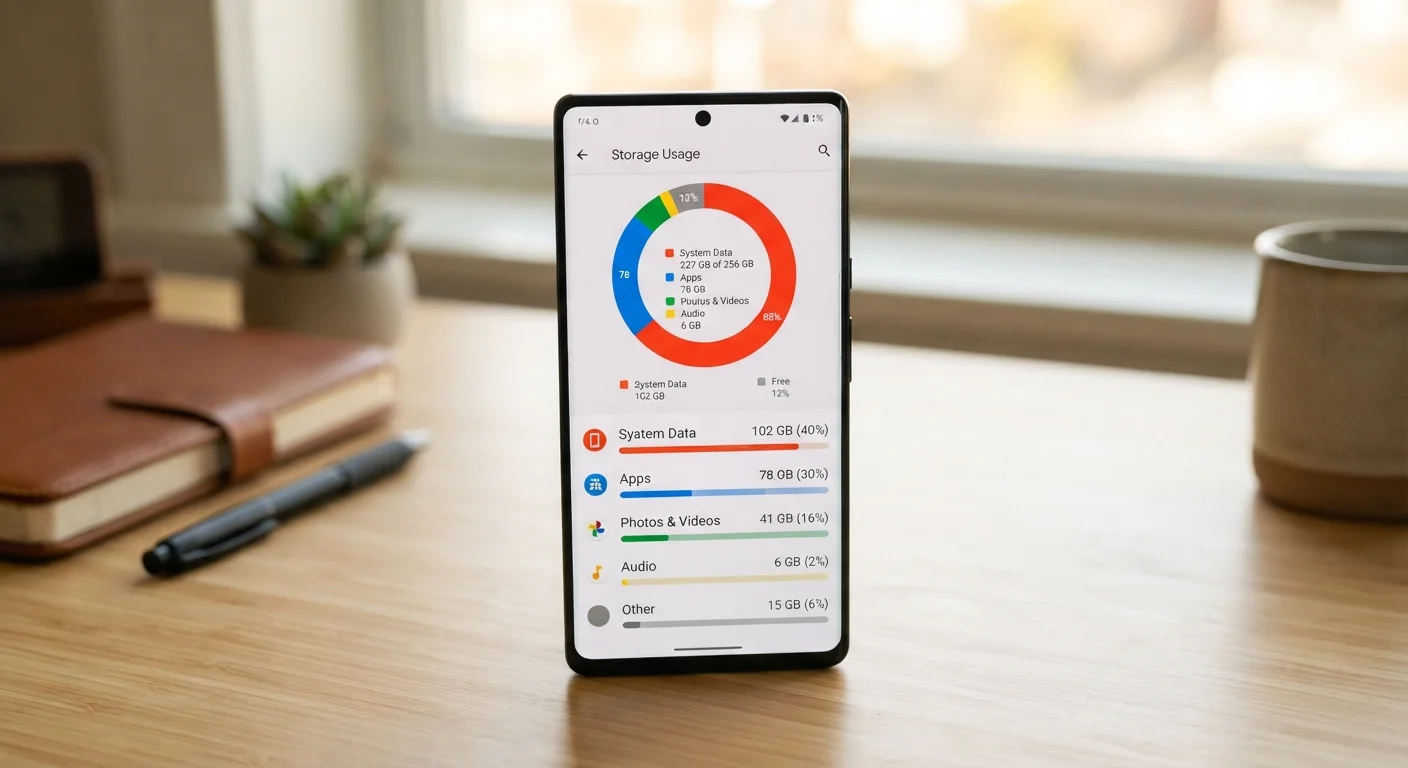
On Android, go to Settings > Storage. On iPhone, go to Settings > General > iPhone Storage. Both will display a color-coded usage bar showing how much space each category - apps, photos, system - is using.
Identify your largest space consumers
Sort the list by size to find your biggest storage users. Photos and videos are almost always near the top, followed by streaming apps that cache content locally. Note which items you use regularly versus which you haven't opened in months - that distinction drives your next decisions.
Back up and offload photos and videos
Enable automatic backup in your device's default photo app (Google Photos on Android, iCloud Photos on iPhone). Once backup is confirmed complete, use the app's built-in option to remove device copies of already-uploaded images. This single step commonly recovers several gigabytes.
Clear app caches
On Android, go to Settings > Apps, select an app, tap Storage, then Clear Cache. Streaming, browser, and social media apps frequently accumulate hundreds of megabytes. On iPhone, iOS manages cache more automatically, but you can offload an app (which removes the app but keeps its data) or delete and reinstall it to clear accumulated cache.
Delete unused apps completely
Removing an app you no longer use eliminates not just the app itself but all its cached data, downloaded content, and associated files. On both platforms, press and hold an app icon and select the delete or uninstall option. Even apps you think are small can carry large data footprints if they've been accumulating content over time.
Clear your downloads folder
Open a file manager app or your browser's built-in downloads section. Old PDFs, APK files, audio clips, and documents accumulate here invisibly. Sort by file size to find the largest items quickly and delete anything you no longer need. Many users find several gigabytes of forgotten downloads here.
Review streaming app download settings
Music, podcast, and video apps often store downloaded content for offline use. Open each app's settings and look for a 'Downloads' or 'Offline Content' section to see what's stored locally. Remove downloads you've already consumed and disable automatic downloads if you rarely use offline mode.
Clearing Data Is Not the Same as Clearing Cache
Cache files are temporary and safe to delete - they'll be rebuilt automatically. App data includes your personal settings, saved files, and account information. Clearing data resets the app to a blank-slate state, so only do this if you're prepared to set the app up again from scratch.
Keeping Storage Under Control Long-Term
One cleanup session won't stay effective forever. Apps accumulate cache continuously, new downloads pile up, and camera rolls grow with every trip. The most sustainable approach is building a lightweight habit rather than waiting for another crisis.
Set a Monthly Storage Check Reminder
Adding a recurring monthly reminder to review your storage takes less than 30 seconds to set up and prevents gradual accumulation from becoming a crisis. Most people only check storage when the device is already critically full, which limits your options. A quick review every few weeks keeps you in control.
Apps that run heavily in the background can also contribute to both storage and battery drain. If you notice certain apps consuming disproportionate space, they may also be affecting your battery life in the same way. And once your storage is organized, a cleaner app layout makes day-to-day use more intuitive - our guide on organizing your apps effectively offers practical approaches that complement what you've done here.
For more foundational tips on getting the most from your device, explore the Smartphone Basics and Device Care & Safety hubs.