

Key Takeaways
- Organizing apps by task or workflow reduces the time you spend searching and scrolling.
- Frequency-based layouts - putting your most-used apps front and center - work well for most users.
- Folders help reduce visual clutter but work best when kept small and clearly named.
- No single system works for everyone; the best approach matches how your brain naturally works.
- Periodic decluttering prevents layout drift and keeps your phone genuinely useful.
Why App Organization Matters More Than You Think
The average smartphone user has dozens of apps installed, yet most people spend surprising amounts of time hunting for the one they need. A chaotic home screen is more than a minor annoyance - it adds low-grade friction to everyday tasks, interrupts focus, and can even nudge you toward mindless scrolling while searching for something useful.
Good app organization isn't about aesthetic perfection. It's about reducing the mental effort your phone requires. When your layout matches how you actually work, your phone becomes a tool rather than a puzzle. If you're still setting up or switching devices, our guide to setting up a new smartphone covers the foundational steps worth doing before you land on a layout.
Start With How You Actually Use Your Phone
Before rearranging anything, spend one day noticing which apps you open most and in what sequence. Your existing habits are data. Building your layout around real behavior - rather than an idealized version of how you think you should use your phone - produces a system that stays useful without constant maintenance.
Three Core Approaches to App Layout
There's no single correct system, but most effective approaches fall into one of three categories - or a combination of them.
1. Organize by Workflow or Task
Group apps around what you're trying to accomplish rather than what category the app falls into. A folder called "Morning Routine" might hold your weather app, news reader, and meditation timer. A "Travel" folder might contain maps, ride-sharing, and your airline app. This works especially well if your phone use clusters around distinct activities throughout the day.
2. Organize by Frequency
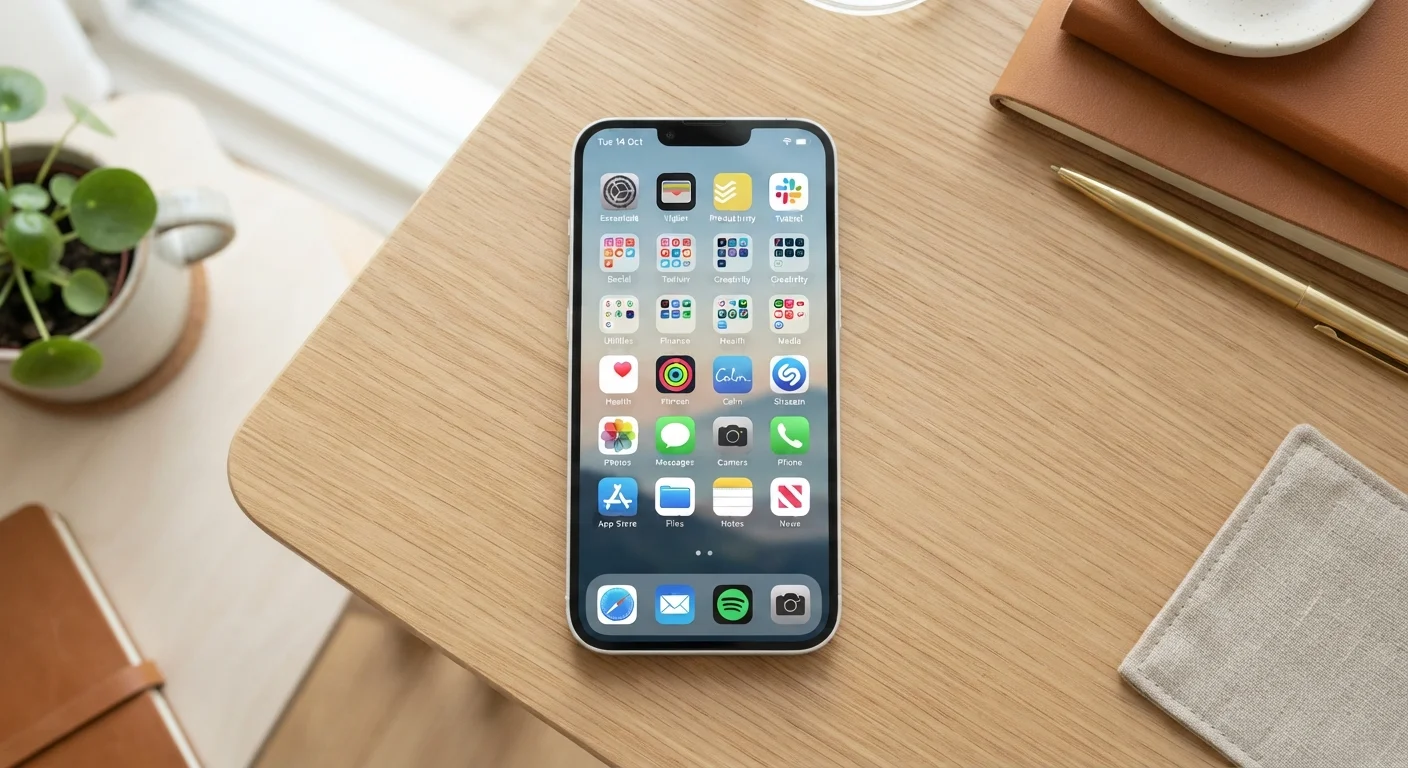
Put your five to eight most-used apps on your primary home screen - ideally in the dock at the bottom, where they're reachable with your thumb. Move everything else to a second screen or into folders. The principle here is simple: the apps you touch daily should be the easiest to reach. Apps you open once a month don't need prime real estate.
3. Organize by Category with Folders
Standard category folders - Finance, Health, Social, Utilities - work well if you have a large number of apps and prefer a consistent, predictable structure. Keep folders to five to eight apps each. Overstuffed folders defeat the purpose, since you're back to searching inside a folder instead of your home screen. For a broader look at what types of productivity tools are worth keeping, see our overview of productivity app categories.
Place your highest-frequency apps in the dock or bottom row of your home screen.
The bottom of the screen is the most thumb-accessible area on most phones. Reducing the physical reach required for your most-used apps shaves seconds off every interaction, which adds up meaningfully across a day.
Use workflow-based folder names instead of generic category labels.
Generic labels like 'Utilities' or 'Misc' force you to remember which app you filed where. Workflow labels tie apps to an action, which is closer to how you'll actually think when you need them.
Keep your first home screen to ten apps or fewer.
A crowded home screen creates visual noise that slows recognition. When every app is competing for attention, nothing stands out. A minimal primary screen trains your eye to find things fast.
Delete or offload apps you haven't opened in 60 days.
Unused apps contribute to visual clutter, may consume storage, and can create security exposure if they're outdated and unpatched. Regular pruning keeps your layout intentional.
Establish a consistent rule for where new apps land before you download them.
Most layout chaos starts with new apps being dropped on the default screen and never moved. A placement decision at download time prevents drift without requiring periodic reorganization sessions.
Quick Wins You Can Do Right Now
You don't need a full reorganization session to make immediate improvements. A few targeted changes can reduce friction today.
Once you've cleared away the clutter, it's worth thinking about which apps you actually need. Our guide on reclaiming storage space walks through identifying apps that are taking up space without earning their place.
Making Your System Stick Over Time
The most common failure point in app organization isn't the initial setup - it's what happens three weeks later when new apps get downloaded and dropped wherever. Layout drift is normal, and a light monthly review is enough to prevent it from snowballing.
Set a simple rule for new apps: before you download something, decide where it lives. If it doesn't fit cleanly into your existing structure, that's useful signal about whether you really need it. Pairing good organization with sensible notification settings also reduces the pull of apps that don't deserve your attention.
iPhone and Android Handle Folders Differently
On iPhone, apps must live on a home screen page or in a folder - you can't have empty space. On Android, you have more freedom to place apps anywhere on a grid and leave gaps intentionally. If you're weighing the differences between the two platforms more broadly, our comparison of iPhone and Android covers the key distinctions in customization and layout flexibility.
The goal is a phone that supports your day rather than disrupting it. If your current layout makes you scroll and squint, it's worth spending twenty minutes on a reset. Your future self - the one trying to open the right app mid-commute - will be grateful.