

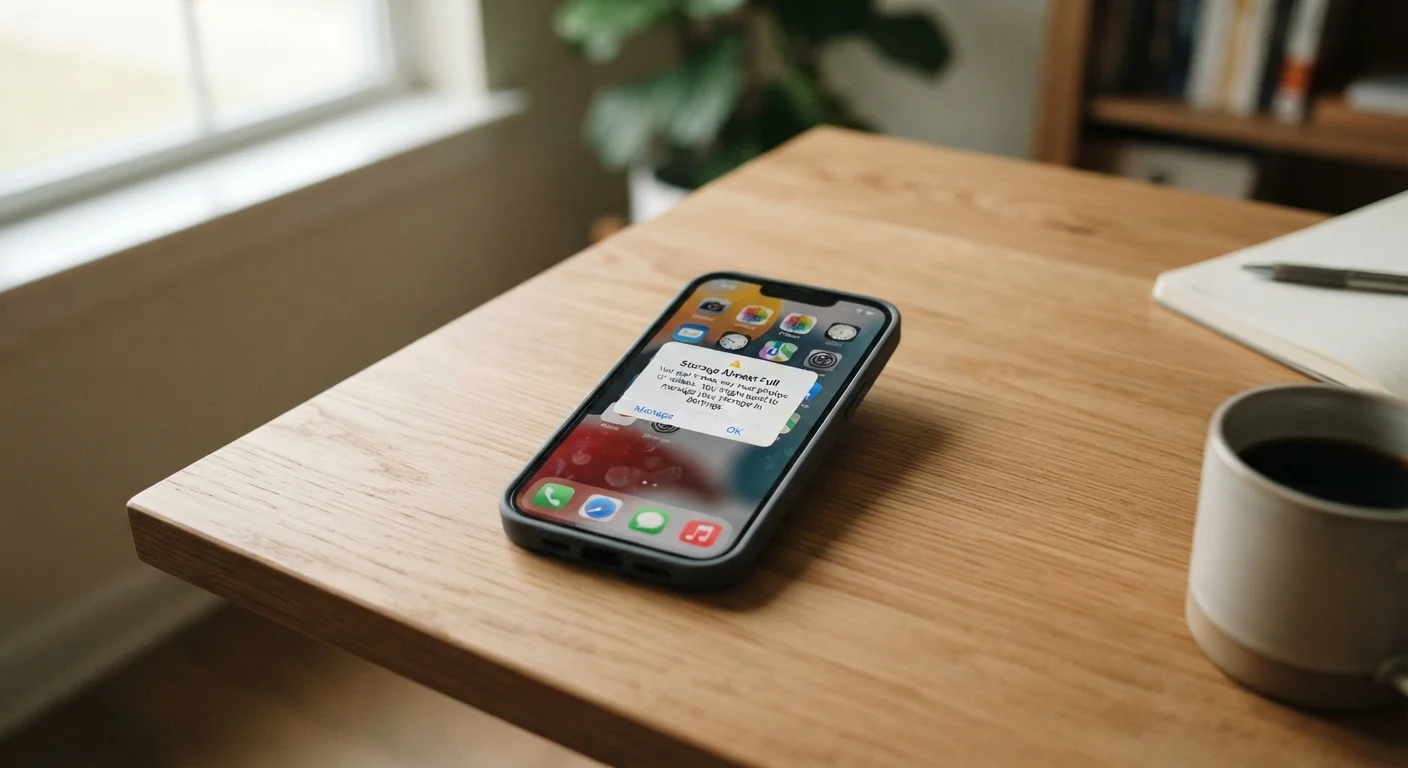
Key Takeaways
- A device with less than 10-15% free storage often shows measurable performance slowdowns.
- Apps take longer to open and crash more frequently when storage is critically low.
- The camera is usually one of the first features affected by full storage.
- Routine storage management - not just hardware upgrades - can restore noticeable speed.
- Both Android and iOS devices are vulnerable to storage-related performance issues.
Storage-Induced Performance Degradation
When a device's internal storage is nearly full, the operating system struggles to find temporary space it needs to function normally. This forces the processor and software to work harder, making apps slower to open, tasks slower to complete, and the device more prone to crashes. It's a common but often overlooked cause of sluggish device behavior.
Modern operating systems reserve a portion of storage for virtual memory and swap space. When available storage drops below roughly 10-15% of total capacity, these buffers shrink, causing measurable slowdowns in read/write operations and multitasking.
Why Low Storage Slows Everything Down
Your device doesn't just use storage to hold photos and apps - it relies on free space as an active workspace. The operating system constantly writes temporary files, manages virtual memory, and shuffles data while running apps. When the available space shrinks, that workflow gets congested.
Think of it like a desk with almost no room to spread out papers. Even routine tasks take longer because there's nowhere to put things. Devices facing this condition must work harder to accomplish basic operations, which shows up as lag, stuttering, and sluggish app behavior.
Storage pressure is one of several reasons a phone slows down over time, but it's one of the most fixable.
~10-15%
Minimum free storage for stable performance
Device manufacturers and operating system developers generally recommend keeping at least 10-15% of total storage free to maintain normal system function.
64GB
Common base storage on mid-range phones
Many mid-range smartphones ship with 64GB of internal storage, meaning users should aim to keep roughly 6-10GB consistently available.
Common Signs Storage Is Affecting Your Device
Some symptoms of storage strain are easy to spot; others are subtle enough to be mistaken for aging hardware. Here are the most telling signs:
- Apps take noticeably longer to open - If apps that used to launch in a second now take three or four, cramped storage is a likely culprit.
- Frequent app crashes or freezes - Apps need temporary space to operate. When that space is scarce, they crash mid-use or refuse to open at all.
- The camera lags or fails to save photos - Camera apps write large files instantly. When storage is full, the camera may freeze, skip shots, or display an error before you can capture anything.
- System updates won't install - Updates require free space to download and unpack. A full device blocks updates entirely, which can leave known security vulnerabilities unpatched.
- The keyboard or autocorrect responds slowly - Even lightweight system functions depend on available storage for temporary data, so even text input can feel sluggish.
- General interface lag - Scrolling stutters, animations stutter, and the home screen feels unresponsive - all classic signs the OS is working in cramped conditions.
What You Can Do About It
The good news is that storage-related slowdowns are among the most addressable performance issues you'll encounter. You don't need new hardware - you need more breathing room.
Start by identifying what's using your space. Both Android and iOS include built-in storage breakdown tools under Settings. Look for large media files, app data, and cached content - these are usually the biggest offenders.
Clear app caches regularly. On Android, you can clear caches for individual apps under Settings > Apps. On iOS, offloading unused apps (Settings > General > iPhone Storage) removes the app but keeps its data, freeing space without deleting anything important.
Move or back up photos and videos. Camera rolls are frequently the single largest consumer of storage. Moving them to cloud storage or a computer frees substantial space quickly.
Set a Monthly Storage Check Reminder
Opening your device's storage settings once a month takes less than two minutes and helps you catch problems before they affect performance. Look for apps you haven't opened in months and media files that could be backed up elsewhere. Small, regular cleanups are far easier than emergency triage when your device grinds to a halt.
For a deeper walkthrough, see how to reclaim space without losing what matters - including step-by-step guidance on clearing caches and managing downloads.
Keeping storage habits consistent matters too. Routinely running out of space is one of the habits that quietly shortens a phone's lifespan. Treating storage management as part of regular device care - not a one-time fix - pays off over time.