

Key Takeaways
- The storage number on the box is the total capacity, not the usable free space you get.
- The operating system and pre-installed apps consume a portion of storage before you start using the device.
- GB (gigabyte) and TB (terabyte) are units of digital size - 1 TB equals approximately 1,000 GB.
- Available storage shrinks over time as apps, updates, and media accumulate.
- Running low on storage can slow your phone down, not just prevent new downloads.
Phone Storage
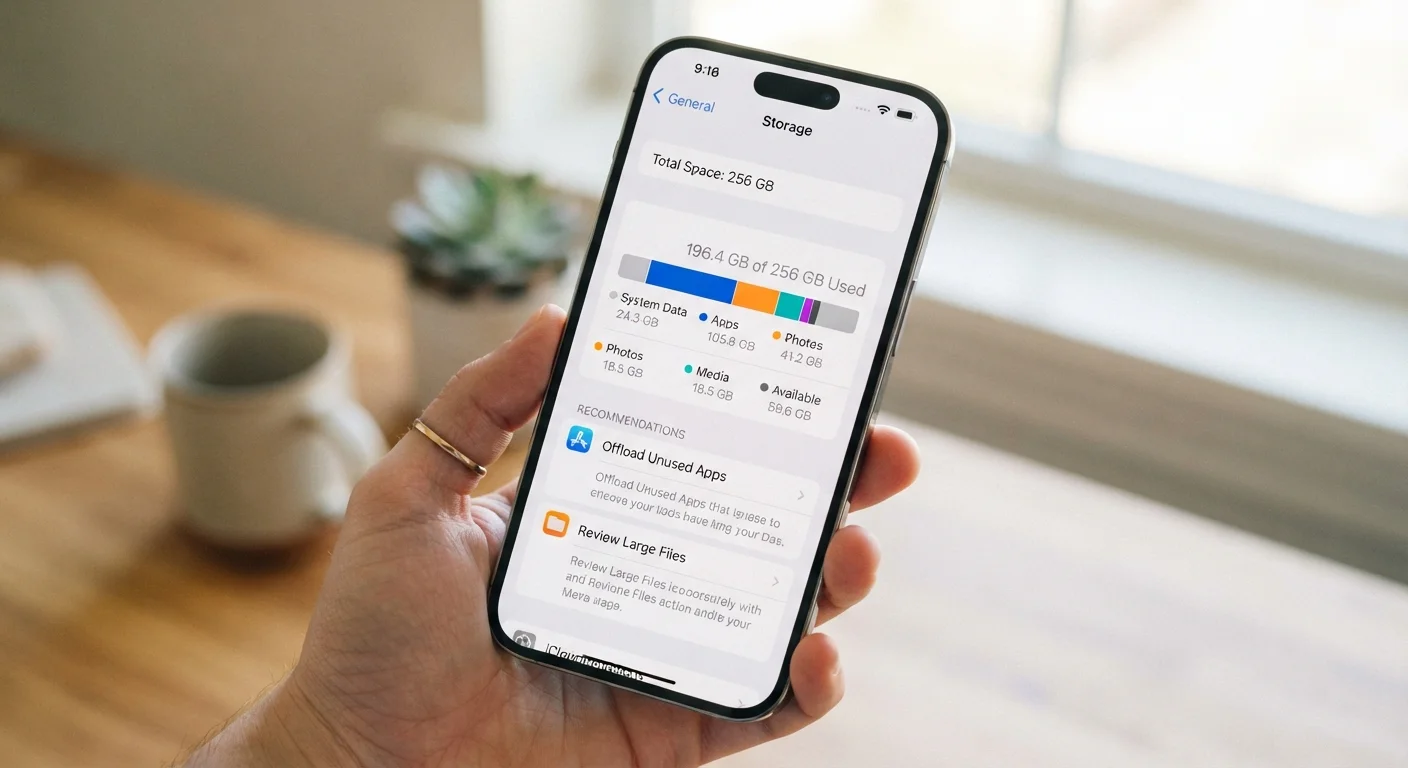
Phone storage refers to the built-in space your device uses to hold the operating system, apps, photos, videos, and other files. It's measured in gigabytes (GB) or terabytes (TB) and is separate from RAM, which handles active tasks. The number advertised on the box represents the maximum total capacity - not how much you can actually use from day one.
Storage uses binary math internally, so a drive labeled 128 GB may show as roughly 119 GB in your device's settings due to how the operating system calculates units.
The Label on the Box vs. What You Actually Get
When a phone is advertised as having 128 GB of storage, that figure is the total physical capacity of the chip inside - not a promise of how much free space you'll have on day one. Before you ever open the box, a significant portion of that storage is already spoken for.
The operating system itself takes up considerable room. On top of that, manufacturers often pre-install a suite of apps - sometimes called bloatware - that you may never use but can't always remove. Between the OS and pre-installed software, it's common to find 15-25 GB already consumed when you first power on a new device.
There's also a technical quirk worth understanding: storage manufacturers measure capacity using decimal math (where 1 GB = 1,000,000,000 bytes), while your phone's operating system uses binary math (where 1 GB ≈ 1,073,741,824 bytes). This means a 128 GB phone often displays closer to 119 GB in settings - not because anything is missing, but because of how the units are calculated differently. For a broader look at the terminology you'll encounter in your phone's settings, see the smartphone terms glossary.
Understanding GB and TB: What the Units Mean
Storage is measured in bytes, and the prefixes tell you the scale:
- Gigabyte (GB): Roughly 1 billion bytes. A single minute of HD video might use 100-200 MB (megabytes), so 1 GB holds about 5-10 minutes of HD footage.
- Terabyte (TB): Approximately 1,000 gigabytes. Only a handful of premium smartphones currently offer 1 TB of built-in storage.
To put everyday file sizes in perspective: a typical smartphone photo is 3-8 MB, a standard app might occupy 100-500 MB, and streaming apps that allow offline downloads can swell to several gigabytes depending on content quality.
15-25 GB
Typical storage used by OS and pre-installed apps
General industry estimate based on common smartphone configurations; exact figures vary by manufacturer and model.
~119 GB
Usable space displayed on a "128 GB" phone
The gap results from the difference between how storage manufacturers and operating systems calculate unit size using decimal vs. binary math.
3-8 MB
Average size of a smartphone photo
Varies based on camera resolution, file format (JPEG vs. RAW), and scene complexity; newer flagship cameras can produce larger files.
Understanding these scales helps you judge how quickly your storage will fill based on your habits - heavy video shooters and offline music collectors will notice capacity shrinking far faster than someone who streams everything and backs up photos to the cloud.
How Storage Fills Up - and Why It Matters
Storage doesn't stay static. Apps accumulate cached data over time, operating system updates take up space, and media libraries grow with every photo, screenshot, and downloaded file. Many users are surprised to find their storage half-full within a year of owning a device they thought had plenty of room.
What's less obvious is that running out of storage isn't just inconvenient - it can actively hurt your phone's performance. When storage is critically low, the system has nowhere to write temporary files it needs for normal operation, which leads to lag, crashes, and sluggish app performance. If your phone has been feeling slower lately, storage pressure may be a contributing factor. Learn more in our article on signs your device storage is hurting its performance.
Check Storage Before You Feel the Crunch
Make a habit of reviewing your phone's storage breakdown every few months - both iOS and Android have built-in tools that show which apps and file types are consuming the most space. Catching a storage squeeze early is far easier than managing a nearly-full device. Your phone's Settings app is the best place to start.
If you're already feeling the squeeze, a step-by-step guide to reclaiming space can walk you through clearing caches, managing downloads, and identifying the biggest space hogs without deleting things you care about.
Choosing the Right Storage Amount
Because most modern phones don't allow you to add storage later, the capacity you choose at purchase tends to stay with the device for its entire life. A practical way to think about your needs:
- 64-128 GB: Workable for users who rely on cloud storage, stream media rather than downloading it, and don't shoot much video.
- 256 GB: A comfortable middle ground for most everyday users who want room to grow without managing storage obsessively.
- 512 GB - 1 TB: Suited to heavy content creators, travelers who can't rely on Wi-Fi, or anyone who prefers keeping large libraries entirely on-device.
When evaluating your needs, remember to factor in not just what you use today, but how your habits might evolve - app sizes have grown over time, and higher-resolution cameras produce larger files with each new phone generation. Understanding these numbers now means fewer surprises later, and a phone that stays useful longer.