

Key Takeaways
- Every permission prompt represents real access to your device's hardware or personal data.
- Denying a permission doesn't always break an app - many features work fine with limited access.
- Some permission requests are legitimate; others signal poor design or data harvesting.
- You can review and revoke permissions at any time through your phone's Settings app.
- Location, microphone, and contacts permissions deserve the closest scrutiny before granting.
App Permissions
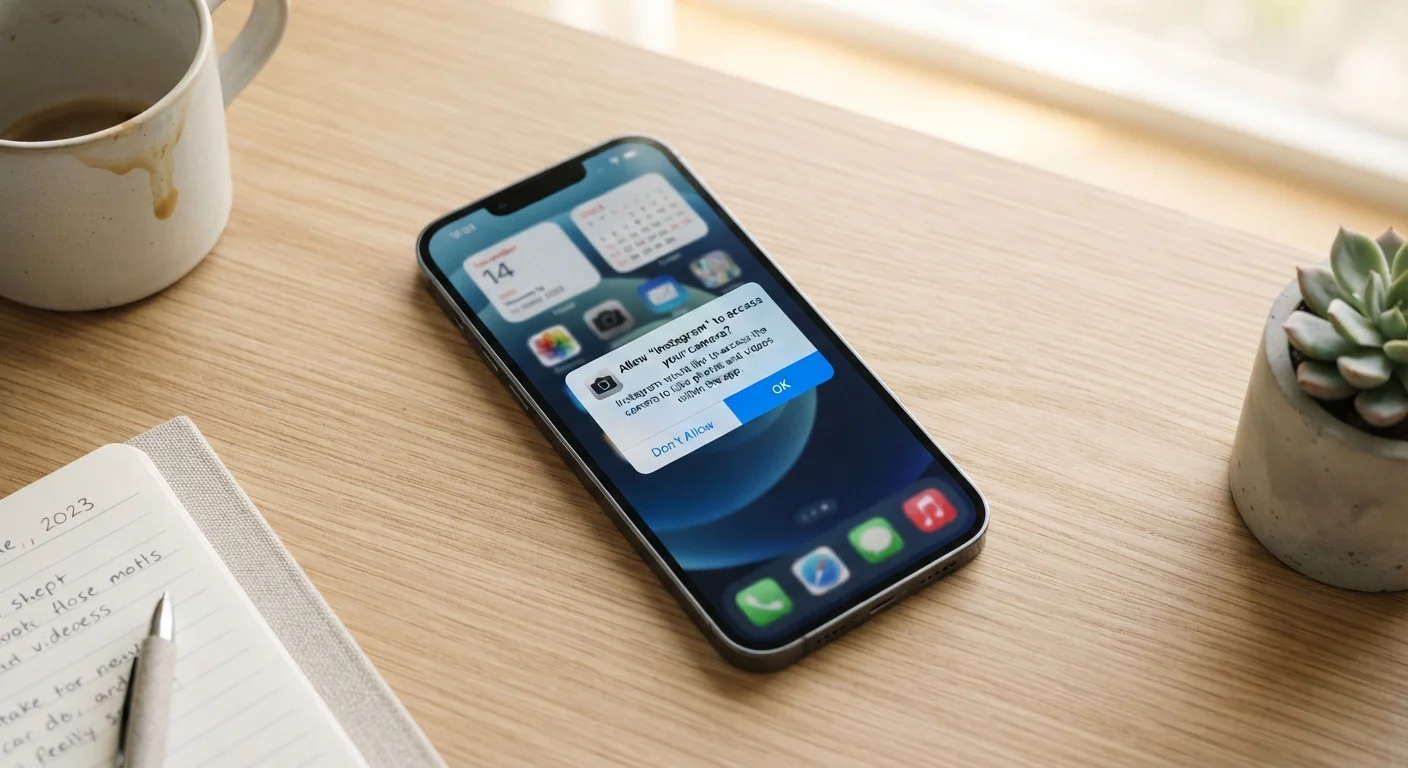
App permissions are requests an app makes to access specific features or data on your device - such as your camera, microphone, contacts, or location. When you install or open an app for the first time, your phone asks whether you want to grant or deny that access. Permissions exist to give users control over what their apps can and cannot do.
On both Android and iOS, permissions are enforced at the operating system level, meaning an app cannot access restricted hardware or data without an explicit user grant - regardless of what the app's code attempts to do.
What Each Common Permission Actually Accesses
Permission names can sound vague, so here's what each category genuinely touches on your device:
- Location: Your GPS coordinates, which can reveal your home, workplace, and daily routine.
- Camera: The ability to capture photos and video, including in the background on some platforms.
- Microphone: Audio input from your device - not just for calls, but potentially at any time the app is active.
- Contacts: Names, phone numbers, emails, and addresses of everyone in your address book - people who never consented to share their information.
- Storage/Photos: Access to files, images, or your entire photo library, depending on how broadly you grant it.
- Notifications: The ability to send alerts to your screen, often used to re-engage users with marketing messages.
Understanding what each label covers helps you evaluate the ask on its own terms - not just whether you trust the app in general.
iOS and Android Handle Permissions Differently
Apple's iOS tends to require per-feature permission prompts that appear in context - for example, when you first use the camera within an app. Android has moved closer to this model in recent versions, but older Android devices may still show bulk permission requests at install time. Knowing your platform helps you interpret when and why a prompt appears.
How to Decide Whether a Permission Request Is Reasonable
The core question is simple: does this app need this access to do what I downloaded it for? A navigation app asking for location makes obvious sense. A wallpaper app asking for your contacts does not.
Apply a quick three-part test before tapping Allow:
- Is the permission relevant? Does the feature it unlocks match the app's stated purpose?
- Is the timing appropriate? Apps should request permissions when you trigger the related feature, not all at once on first launch.
- What happens if I deny? Try denying first. If the core function still works, the permission likely wasn't essential.
For a broader look at how permission habits connect to overall phone safety, see our guide on common device security mistakes that many users overlook.
Start With 'Deny' as Your Default
For any permission you're unsure about, deny it first and see whether the feature you actually want still works. You can always grant a permission later from Settings if you find you need it. This approach lets you verify whether a request is truly necessary rather than simply trusting the prompt.
Auditing and Revoking Permissions You've Already Granted
Most people tap Allow without much thought during app setup - and that's normal. What matters is that you can always go back and revisit those decisions.
On iPhone: Open Settings → Privacy & Security to browse permissions by category (e.g., all apps with microphone access in one list). You can also go to Settings → to see everything that specific app has been granted.
On Android: Open Settings → Apps, select an app, then tap Permissions. Alternatively, go to Settings → Privacy → Permission Manager to view access by category across all apps.
Pay particular attention to apps that have Always On location access or microphone access but that you only use occasionally. Revoking unused permissions costs you nothing - and limits background data collection significantly. This is also worth reviewing alongside always-on features that drain your battery, since many overlap with broad permission grants.
Understanding Permission Labels Before You Download
You don't have to wait until installation to evaluate an app's data appetite. Both the Apple App Store and Google Play now display privacy summaries before you download. These labels list what data an app collects, how it's used, and whether it's linked to your identity.
Learning to read these summaries before installing gives you a meaningful filter. Our related explainer on reading app privacy labels before you download walks through each data category in plain terms.
For ongoing management of what you've already approved, the managing app permissions guide provides a practical audit framework. And for a deeper explanation of what specific permission types actually mean at a technical level, see app permissions explained.
45%
Apps requesting location access
Research from app analytics firms has found that roughly 45% of apps on major app stores request location data, though many do not require it for core functionality.
1 in 3
Users who review app permissions
Surveys on mobile privacy behavior consistently find that fewer than one in three smartphone users regularly audit which apps have which permissions on their device.