

Key Takeaways
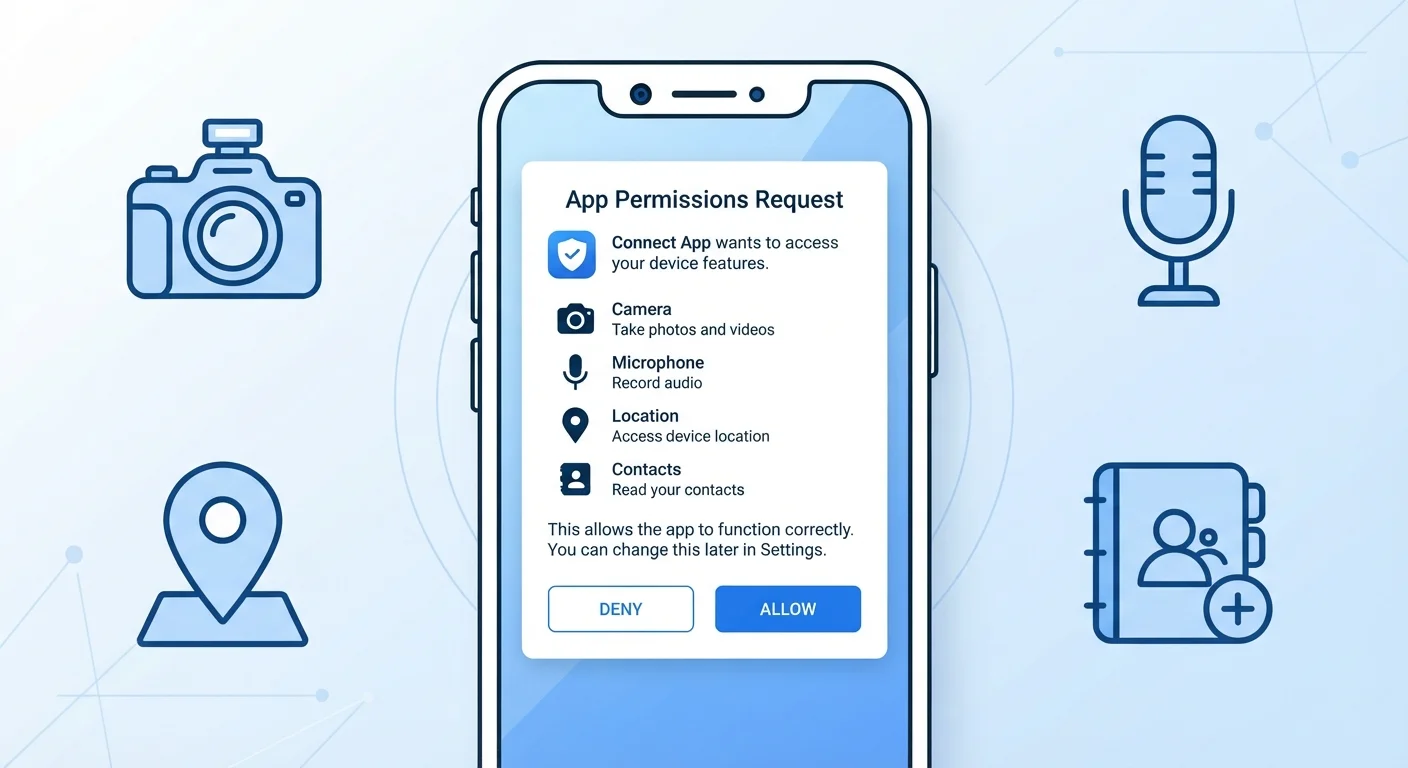
- App permissions control what parts of your phone an app can access, such as camera, contacts, or location.
- You can grant, deny, or revoke permissions at any time through your phone's settings.
- Some permissions are essential for an app to function; others are optional or potentially unnecessary.
- A mismatch between an app's purpose and the permissions it requests is a red flag worth investigating.
- Both Android and iOS allow granular control, including limiting location access to only while the app is in use.
App Permissions
App permissions are formal requests an app makes to access specific features or data on your device - such as your camera, microphone, location, or contacts. When you install or first open an app, your phone presents these requests as prompts you can accept or decline. Granting a permission gives that app ongoing access to the specified resource until you revoke it.
On both Android and iOS, permissions are enforced at the operating system level through a sandboxing model, meaning apps can only access device resources explicitly granted by the user.
What App Permissions Actually Are
Every app you install runs inside a protected area of your phone's operating system. It can't freely reach your photos, contacts, or microphone - it has to ask. That formal ask is a permission request, and your answer determines what the app can and cannot do.
Permissions fall into two broad categories. Sensitive permissions involve access to personal data or hardware: your location, camera, microphone, contacts, calendar, and health data. Normal permissions cover less risky operations - like connecting to Wi-Fi or checking your time zone - and are often granted automatically without a prompt.
When you see a dialog that says "Allow to access your location?", that's the system stepping in as a gatekeeper on your behalf. You're not just setting a preference - you're defining the boundary of what that app is allowed to touch. For a broader look at managing these settings proactively, see the full guide to managing app permissions.
Common Permissions and What They Actually Access
Understanding what each permission unlocks helps you make faster, more confident decisions. Here's what the most common ones actually mean:
- Location: Your GPS coordinates, sometimes down to a few meters. Apps may request this "always" (even in the background) or only "while using."
- Camera: The ability to activate your rear or front camera and capture photos or video within the app.
- Microphone: Access to your device's audio input - used by voice apps, video calls, and some social media features.
- Contacts: Your full address book, including names, phone numbers, emails, and any notes you've stored.
- Photos/Media: The ability to view, read, or in some cases modify images and files stored on your device.
- Notifications: Permission to send you alerts, banners, and sounds - separate from device access but still worth reviewing. Every notification setting explained covers this in detail.
45%
Apps requesting more permissions than needed
Research from app privacy analysis firms has consistently found that a substantial share of popular apps request permissions beyond what their core features require.
3 in 4
Smartphone users who rarely audit permissions
Surveys on mobile privacy behavior suggest most users grant permissions at install and rarely revisit those decisions afterward.
2 types
Permission categories on Android and iOS
Both major mobile platforms classify permissions as either 'normal' (auto-granted, low risk) or 'dangerous' (requires explicit user approval), though terminology varies slightly between systems.
Before installing any app, checking its privacy label in the app store can surface what data it plans to collect - learn how to read app privacy labels before you download.
How to Decide What to Grant
The core question to ask is: does this permission make sense for what this app does? A ride-sharing app needs location. A recipe app probably doesn't need your contacts. A mismatch between an app's stated purpose and its permission requests is the clearest signal to pause.
Start Restrictive, Then Open Up
When unsure, deny a permission and test the app first. If a feature you actually want stops working, you can grant it then. This approach means you only share access that's genuinely useful to you, rather than preemptively handing over everything an app requests.
A few practical guidelines help most users make good decisions:
- Grant only what's needed for the feature you want. If a shopping app offers an optional "scan item" feature, grant camera access only if you plan to use that feature.
- Prefer limited options when available. Choose "While Using" over "Always" for location; choose "Selected Photos" over full photo library access when iOS or Android offers it.
- Revisit old permissions periodically. Apps you installed years ago may hold permissions you forgot about. A quick audit every few months is worthwhile - it's part of the broader phone security habits that actually protect you.
When Permissions Become a Privacy Concern
Permissions become a concern when an app requests access it has no plausible reason to need. The classic example is a flashlight app requesting your contacts or location - there's no functional justification, which suggests data collection for other purposes, often advertising.
This is especially relevant for free apps. Many operate on a model where access to your behavioral data funds the product. That's not inherently wrong, but you should understand the trade-off. Understanding freemium vs. subscription app models can help you evaluate whether a free app's terms are worth accepting.
Apps installed outside official stores - a practice called sideloading - carry additional risk, since they haven't been reviewed for malicious permission requests. Everything to know before sideloading an app covers those risks in full.
Permissions Don't Guarantee Data Safety
Granting a permission controls access at the device level, but it doesn't dictate how an app stores or shares data once it has it. An app with legitimate camera access could still upload your photos to a server. Reading an app's privacy policy - or its app store privacy label - gives you a fuller picture of data handling practices.
The key takeaway: permissions are a tool for you, not just for apps. Using them thoughtfully puts you in control of what your phone shares and with whom.